Logistics and delivery
Fewer “where is my delivery” calls: answering from the map
Answer “where is my delivery” calls from the live map instead of ringing drivers: read the vehicle’s state, give an honest answer without promising a time, send regular callers a link, and give the phone team a read-only role.
Ashish Srivastava6 min read

Most where is my delivery calls can be answered straight from the live map, without ringing the driver. The customer phones to ask where their goods are; instead of phoning the driver in turn, find the vehicle, read its state and its place, and tell the customer what you see. For customers who ask every day, send a read-only link instead, and for key accounts let the office hear when the vehicle arrives. The office team needs map access for this, which a narrow, read-only role gives them.
Key takeaways
- Count the calls for a week first, so you know which customers and which hours cause them.
- On the live map, a vehicle is Moving, Idle, Parked, Offline or Unknown; each state answers a different customer question.
- Say what the map shows, not when the goods will arrive. The platform gives no arrival times.
- A share link lets a regular caller watch the vehicle themselves, until a time you set.
- Arrival alerts at key customers and a read-only role for the phone team take the driver out of the loop.
Counting the calls and what they cost
To reduce WISMO calls ("where is my order"), first find out where they come from. For one ordinary week, ask whoever answers the phone to keep a tally: the customer, the time of the call, and whether they had to ring a driver to answer it. A paper sheet next to the phone is enough.
The tally usually shows a pattern. A handful of customers make most of the calls, often the ones with tight receiving windows or staff waiting at a dock. The calls cluster in the hour before a promised delivery and in the late afternoon. Each call costs more than its own few minutes: the office stops what it was doing, the driver answers a phone in traffic or at another customer's door, and sometimes the driver is the one who gets the next call.
Knowing who calls and when tells you which of the steps below helps most: map access for the office, links for the frequent callers, or alerts for the key customers.
Finding the vehicle and reading its state
Open the live map and type the vehicle's name, or its group's name, in the fleet search. The vehicle's card shows its state, where it is and when it last reported.
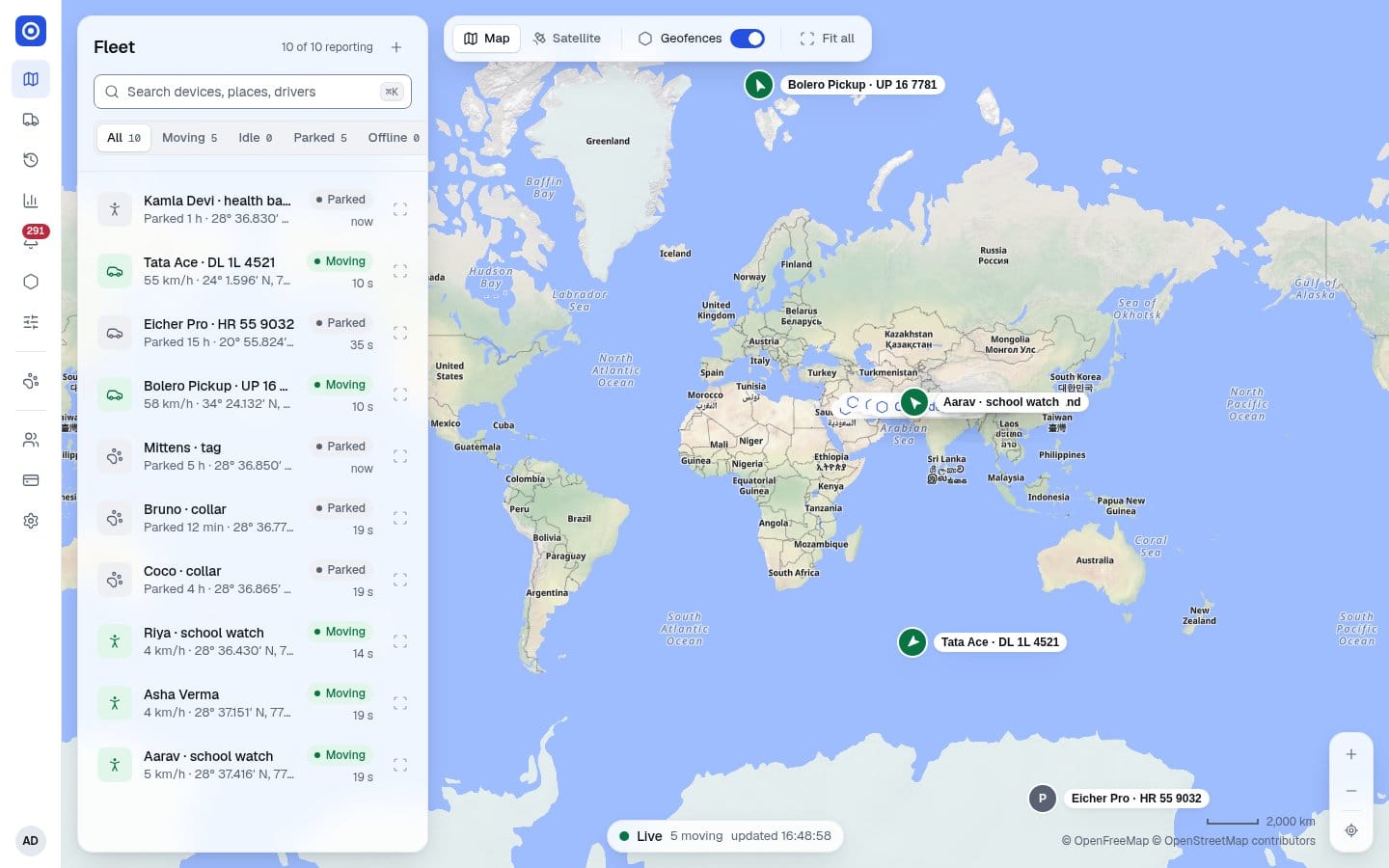
Each state answers a different question:
- Moving: it is on the road. The position and heading tell you whether it is coming towards the customer.
- Idle: the engine runs but the vehicle stands still. In traffic, at a level crossing, or at a dock with the engine on.
- Parked: it has stopped with the engine off. Often at a delivery: if the place is the previous customer, the driver is unloading there.
- Offline: the tracker closed its connection, for example in an underground car park or when its power was cut.
- Unknown: nothing has arrived for a while (ten minutes in a standard setup). The position shown is the last one received.
Check the time of the last report before you answer. A position from a minute ago is a good answer; one from forty minutes ago is not, and you should say so.
Your dispatch sheet still tells you which vehicle carries which customer's goods and in what order the drops are planned. The map tells you where that vehicle is now.
Giving an honest answer without promising a time
The map shows where the vehicle is, not when it will arrive. Alongpin does not calculate arrival times, and a time read off a map and guessed aloud becomes a promise the customer remembers. Answer with what you can see:
- "The van is about four kilometres from you and moving in your direction."
- "It is parked at the drop before yours, so the driver is unloading there now."
- "It has been standing still in traffic on the ring road for a few minutes."
- "I don't have a fresh position at the moment; I'll call you back when I do."
Two things to avoid. Do not tell one customer where the vehicle is delivering to someone else by name: that is your other customer's business. And do not read a planned order off the map: if the driver has changed the order of drops, the vehicle may be heading elsewhere first.
A read-only link for customers who ask often
For the customers at the top of your tally, a share link saves both sides the call. It is a web address that shows one vehicle on a map, read-only, without an account, until the time you set.
- Open Devices, choose the vehicle and open its Settings.
- Under Share links, choose New link.
- Under Label, who it is for, write the customer and the day, such as "Harbour Foods, Tuesday".
- Set Works until to the end of the delivery window or the working day.
- Add a PIN if your server offers one and the link travels through a shared mailbox.
- Choose Create link, copy it and send it.
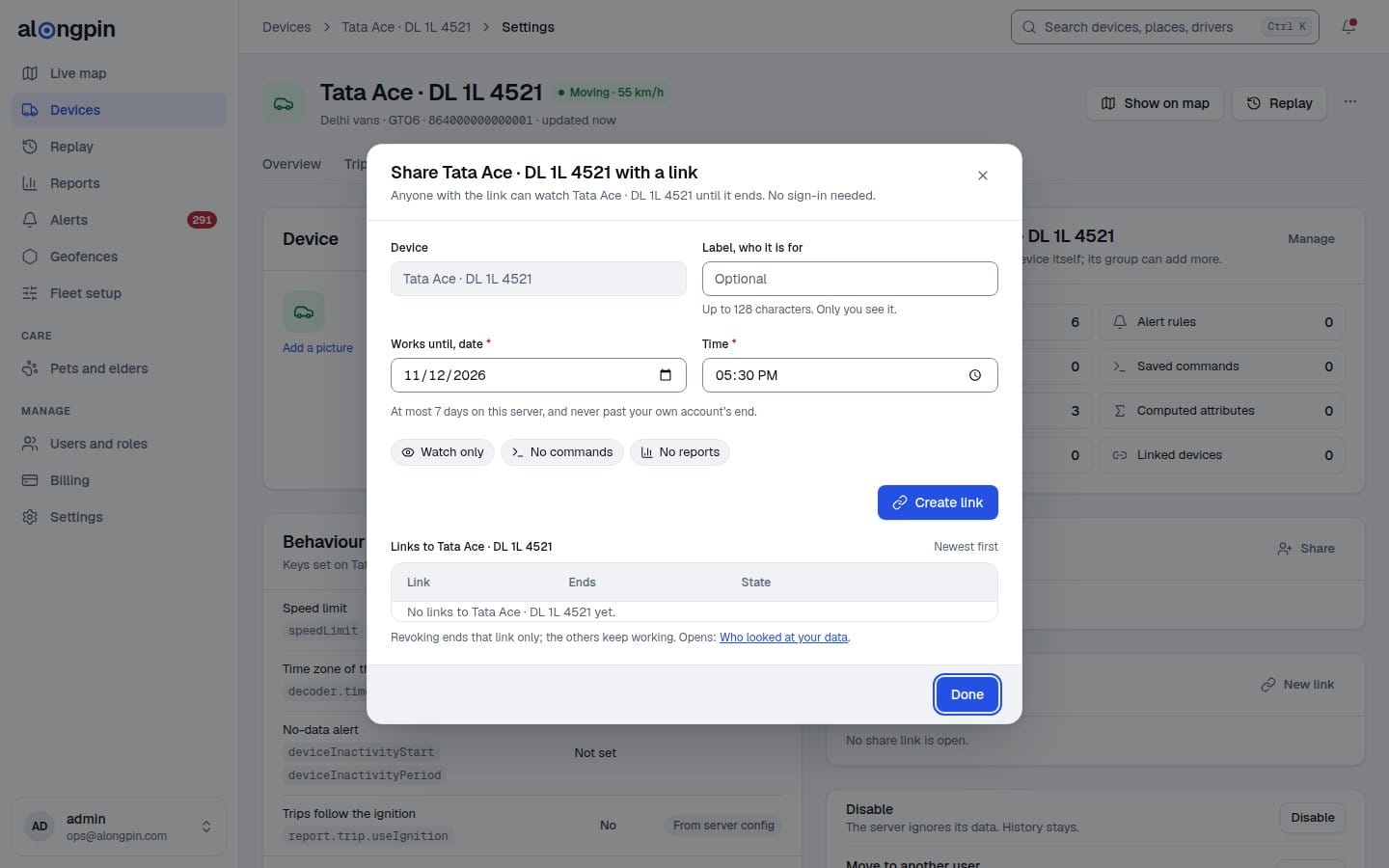
The customer sees the vehicle's position, speed and heading and when it last updated, and can change nothing. They also see where it goes before it reaches them, so keep the end time short and make one link per customer and day. Links end by themselves at their end time, and you can revoke one early under the device's Share links or under Settings → Your account → Privacy and your data. Sharing a device with a link has the details.
Arrival alerts for the office at key customers
For a key customer who wants a call the moment the goods arrive, let the platform tell the office instead of the office watching the map:
- Draw a zone around the customer's site under Geofences and attach it to the vehicles or their group.
- Open Alerts → Alert rules and choose New alert rule.
- Under When this happens, choose Geofence enter.
- Under Only these geofences, tick the customer's zone, so the rule fires there and nowhere else.
- Choose the channels under Tell people by, such as push notifications or e-mail, as your server offers them. Under Only during, a working-hours calendar keeps the alerts to office hours.
- Choose Create rule, then add the vehicles and the office staff who should receive it under Devices and people.
The office then knows the vehicle is on site and can tell the customer before the customer asks. The field service page shows how mobile teams use the same zones for visit times.
Giving the phone team map access with a narrow role
The person answering the phone needs to see vehicles, not change them. Give them exactly that:
- Put the vehicles they answer for in a group, by depot or by customer area.
- Create a role that can Read devices, groups, positions and events, and nothing else.
- Create their user with the Read-only restriction ("Look, don't change"), and give them the role for that group only.
They then see their group's vehicles on the live map, with states and places, and cannot edit vehicles, alert rules or users or send commands. Whether they can also make share links is worth deciding up front: a read-only account cannot create them, so the links stay with a dispatcher. Giving a dispatcher read-only access to one depot walks through the role step by step, and users and roles explains how roles and restrictions add up.
How Alongpin helps
Alongpin (alongpin.com) is a GPS tracking platform you open in a browser or on your phone. Dispatch sees every vehicle on the live map, geofences record arrivals and time on site at depots and customers, and a share link lets a customer follow one delivery without an account. Trip history and reports settle questions after the fact. See how it works for fleets, check your trackers in the device check, or sign up.
Frequently asked questions
Can the customer see when the delivery will arrive?
No. The link shows where the vehicle is and when it last reported, not an arrival time.
Does the driver see that a customer is watching?
Nothing in the vehicle shows that a link exists. Tell drivers that customers may receive links, as part of telling them what tracking records.
What if the vehicle shows Unknown?
Say that you have no current position, and call the driver if the customer needs an answer now.