Personal safety
Sharing your live location with a link for one journey
Share your live location with a link for one journey: what the other person sees, setting when the link ends, adding a PIN, revoking it early, and when an account fits better than a link.
Ashish Srivastava5 min read

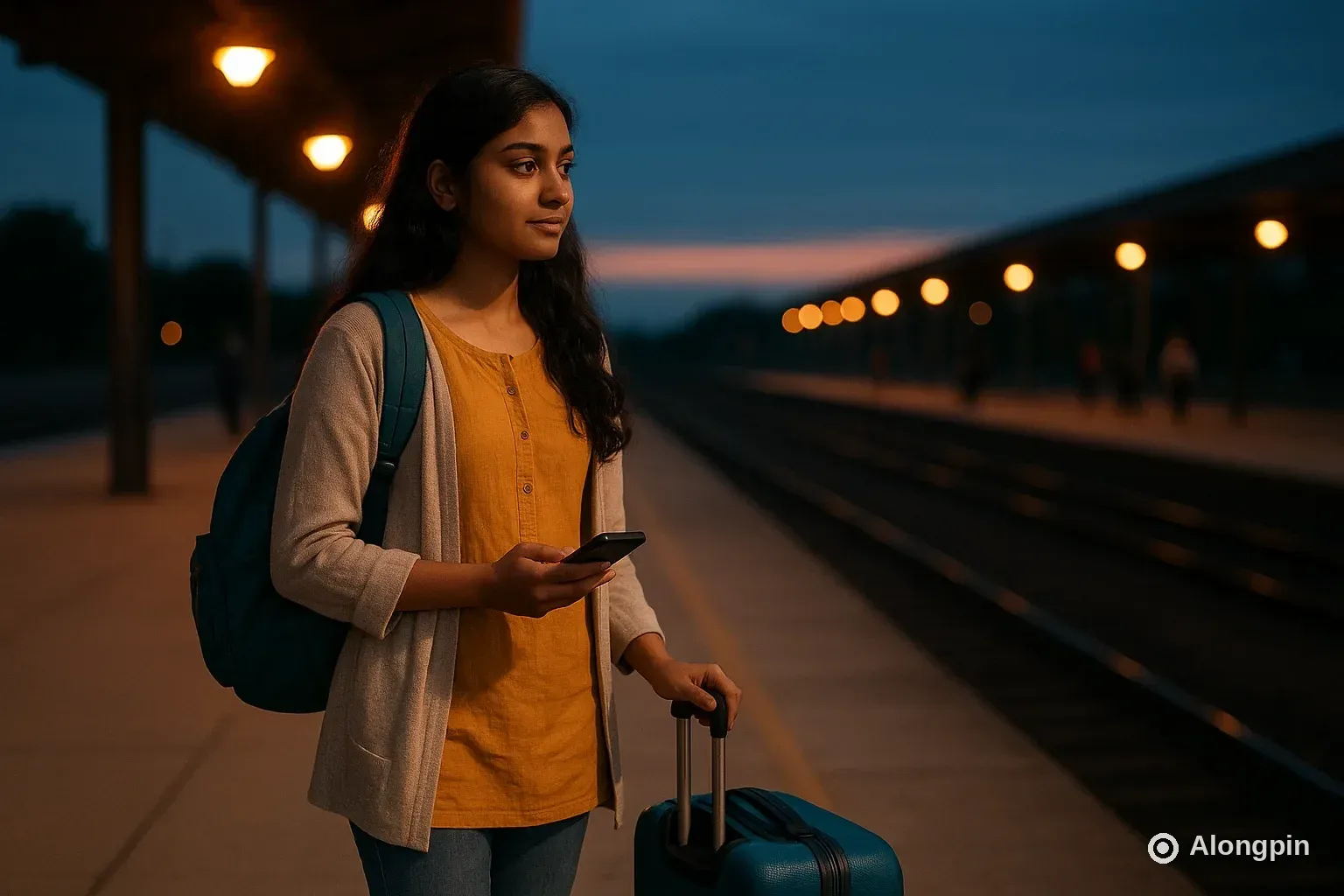
To share your live location with a link for one journey, create a share link for the device you carry (your phone with a tracking app, a GPS watch or a small personal tracker) and send it to the person who should follow you. They open it in any browser and see your position on a map, read-only and without an account, until the time you set. When the journey is over, the link stops working by itself, and you can revoke it earlier if you arrive sooner.
Key takeaways
- A share link shows one device on a map, read-only, to anyone who has the link.
- Set Works until to just after you expect to arrive; the link then ends by itself.
- Add a PIN where your server allows it, and send it separately from the link.
- Your share links under your account settings lists every open link; Revoke ends one at once.
- A link suits one journey. For someone who follows you every day, an account of their own fits better.
What the other person sees, and what they cannot do
The person you send the link to opens it in a browser on their phone or computer. No app, no sign-in, no account. They see:
- a map with your device's position, which updates by itself as new positions arrive;
- its speed and heading, the place, and when it last reported;
- who shared the link and until when it works.
They cannot change anything, see your other devices, read your alerts, or open your account. Depending on how your server is set up, a link may also allow replaying the route; by default it only watches. Once the link ends, they see a page saying it has expired or was revoked, and nothing else, not even the last position.
What they see is only as fresh as your device's last report. A phone app that the phone has paused to save battery, or a watch in a tunnel, shows its last known position with the time it was received. That is worth telling the person: "if it hasn't moved for twenty minutes, call me before you worry". The live map page explains what a position on the map means.

Setting when the link ends
- Sign in to the portal, open Devices and choose the device you will carry.
- Open its Settings and, under Share links, choose New link.
- Under Label, who it is for, write who gets it and for which trip, such as "Mum, train to Pune" or "Anna, drive home Friday". Only you see the label.
- Under Works until, set the date and time when the link should stop working.
- Choose Create link, and when it says The link is ready, copy it and send it.
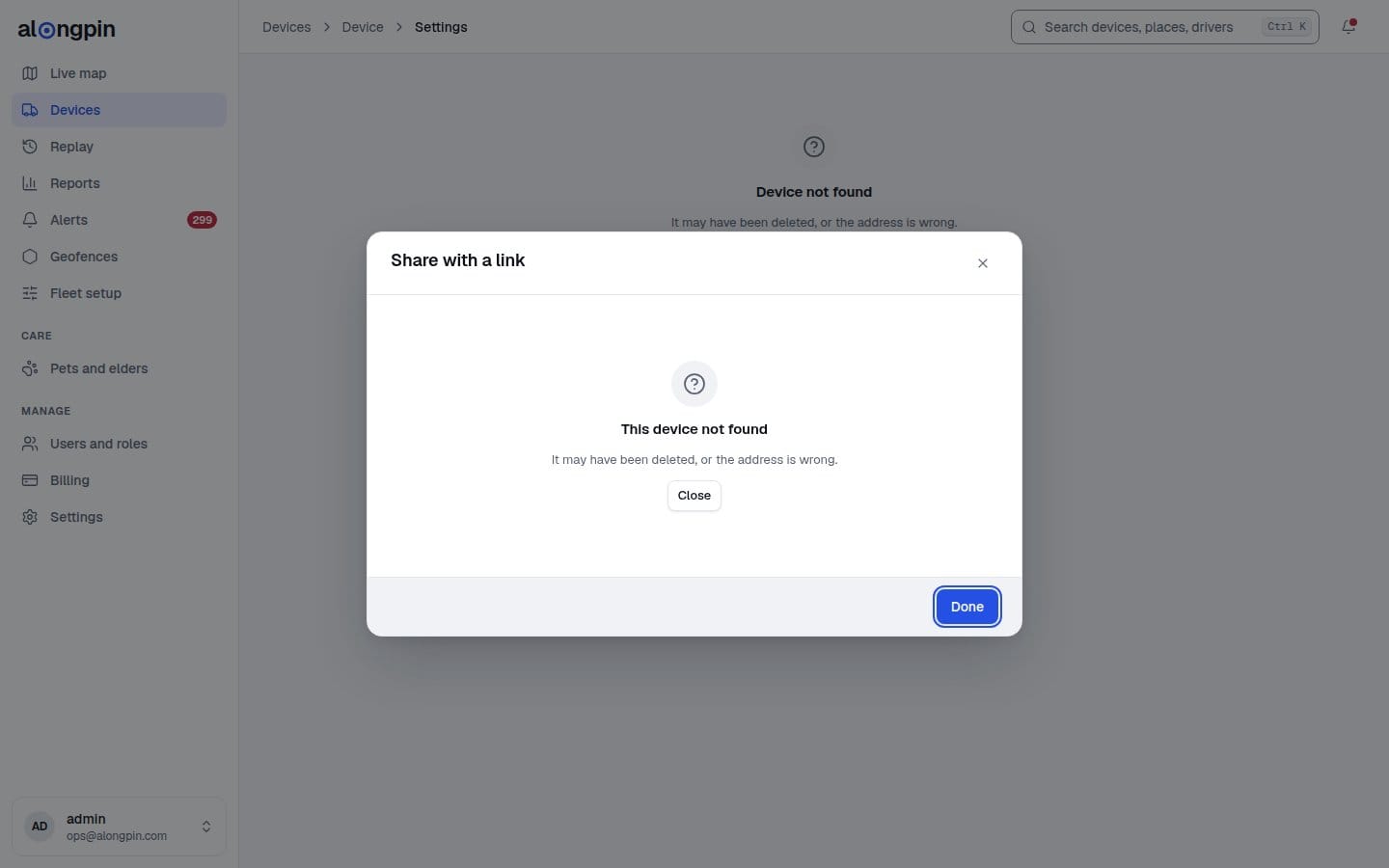
Choose the end time for the journey, not for the week: the time you expect to arrive plus a margin for delays. A train that may run late needs an hour or two more; a short walk home, half an hour. Your server may set a longest period a link can last, and a link never lasts beyond your own account's end; the dialog says so under the date.
The device needs to report during the journey. If you use your phone, check before you leave that the tracking app is allowed to use location all the time and is not stopped by battery saving, and that the phone is charged. The phone app page explains what a phone reports.
A PIN where your server allows it
Your server's administrator decides whether links can or must have a PIN. Where the dialog shows a PIN field (or PIN, optional), you can add 4 to 6 digits. The person then has to type the PIN before the map opens, so a link forwarded to someone else, or seen on a shared screen, shows nothing.
A PIN only helps if it travels separately: send the link by message and say the PIN on the phone, or the other way round. Note it before you close the dialog, because it is not shown again. After several wrong attempts the link locks for a while, and eventually is revoked. Protecting a share link with a PIN has the details.
Revoking a link early and listing the ones still open
You arrived early, or changed plans. End the link:
- Open Settings → Your account → Privacy and your data. Your share links lists every link you made, with its label, when it ends and its state: Active, Revoked, Expired or Not working.
- Choose Revoke on the link and confirm. It stops working at once, also for someone who has the map open.
The same links appear on the device's Settings under Share links, where the button reads End. Each link ends on its own: revoking one leaves your other links to the same device working.
The list also shows how often a link was opened, and Who opened takes you to each opening, with the browser and roughly where from. That is a quick way to check that a link went no further than the person you sent it to. Revoking a share link covers the list in more detail.
Make it a habit to look at Your share links now and then and revoke anything you no longer need, even though links end by themselves.
When a link is better than giving someone an account
| Share link | An account with the device shared | |
|---|---|---|
| Good for | One journey, one evening, one person | Someone who follows you regularly |
| What they need | A browser | A user in the account, set up by whoever manages it |
| How it ends | By itself at the end time, or when you revoke it | When the share is removed |
| What they see | One device, live | The shared device read-only: live, trips and history |
| Alerts | None | Can receive alerts where a rule includes them |
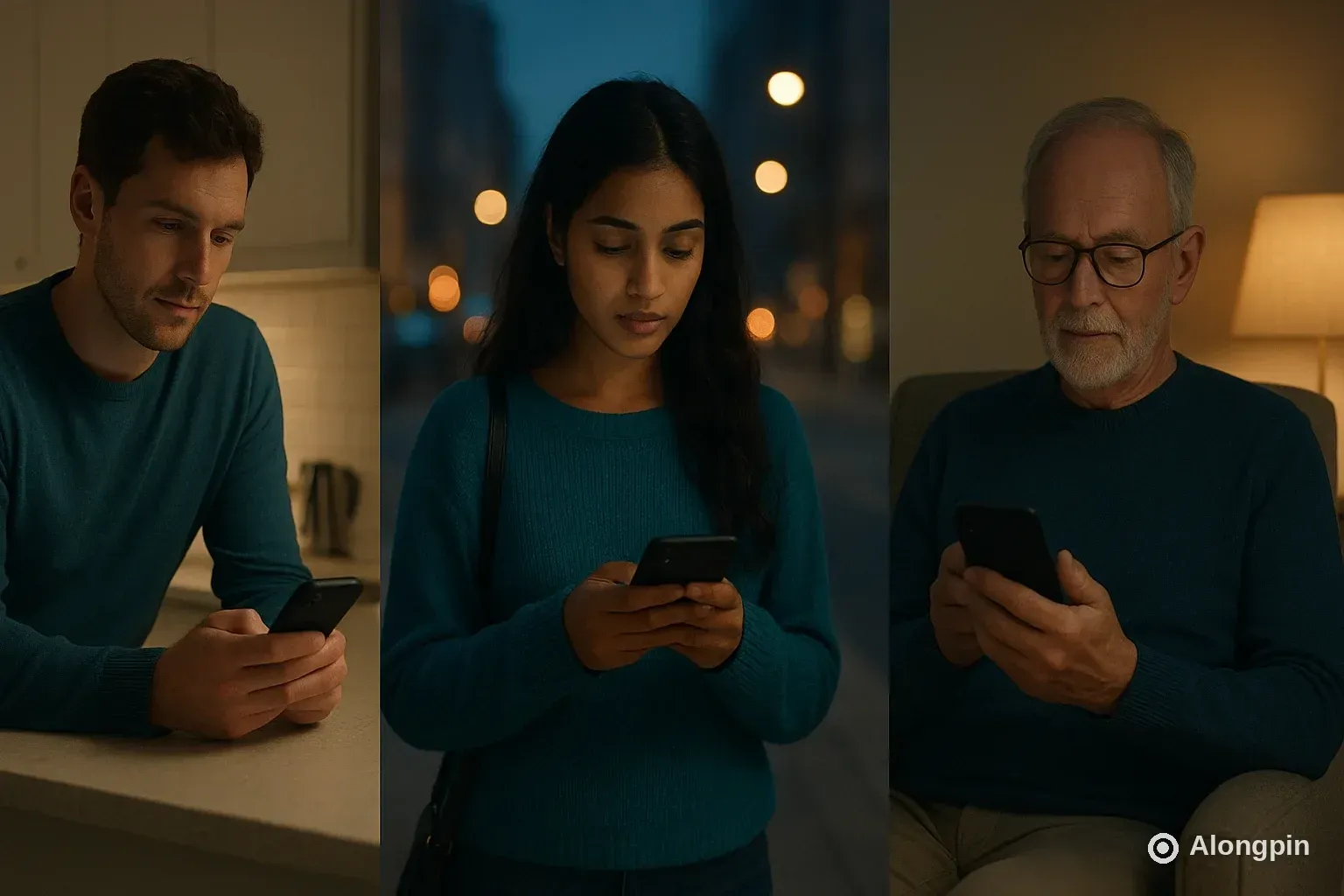
A link is the light option: no account, nothing to install, and it ends by itself. For a partner or parent who should also be told when you press an SOS button or arrive home, an account of their own with the device shared fits better, because a link does not send alerts. The personal safety page shows how the two work together, and sharing a device with a link explains links from start to finish.
A few journeys where a link helps
- The late train or bus home, with a friend following until you are in the door.
- A long drive to relatives, so they know when to put the kettle on without calling the driver.
- A first solo trip for a teenager, followed by a parent for that one day.
- A walk home after an evening out, for a flatmate.
- A hike or a run on your own, with someone at home who knows your route.
In each case, tell the person what to do if the map stops moving or the link ends before you arrive: call you first, then call someone who can help. Alongpin shows your position to the people you choose; it does not alert emergency services.
How Alongpin helps
Alongpin (alongpin.com) is a GPS tracking platform you open in a browser or on your phone. A personal tracker, GPS watch or phone shares your position with the people you choose, the SOS button alerts your contacts with where you are, and a share link lets someone follow one journey and then expires. See how it works for personal safety, and check your device in the device check.
Frequently asked questions
Does the person need to install anything?
No. The link opens in a browser.
Can I extend a link?
No. Make a new one and send it; the old one ends at its time.
Why can't I create a link?
Read-only accounts cannot create share links, and an administrator can turn links off. Your access and limits under your settings shows whether you can make them.