Reports and data
From tracking data to payroll: start, end and driving time
Tracking data can check timesheets for drivers and field staff: first departure and last return from a depot zone, driving time and distance from trips, in Excel with a sheet per vehicle. What it shows, and where its limits are.
Ashish Srivastava6 min read

GPS tracking can support payroll for mobile staff as a cross-check, not as a clock. The tracking data says when a vehicle left the depot, when it came back, how long it was driven and how far; payroll needs hours worked, breaks and overtime. Where the two overlap, tracking is a useful second source: a timesheet that says 07:00 to 17:30 can be set beside a first departure at 07:12 and a last return at 17:41. In Alongpin those figures come from two reports: Geofence stays for the depot zone, and Trips for driving time and distance, both downloadable to Excel with a sheet per vehicle.
Key takeaways
- Use tracking to check timesheets and settle questions, not to replace the record of hours worked.
- A depot zone gives the first departure and the last return of each vehicle each day.
- The trips report gives driving time, idle time and distance per journey and per day.
- Excel, a sheet per device gives each vehicle (or driver's van) its own tab.
- Driver names appear only where the tracker reads a card or key, or a vehicle is always driven by one person.
- Breaks, private use and the agreement with staff decide what the figures may be used for.
What payroll needs and what tracking can supply
Payroll for drivers and field staff usually needs start time, end time, breaks, overtime and sometimes allowances by distance or by night out. Tracking supplies a different set of facts:
| Payroll asks | Tracking supplies | Fit |
|---|---|---|
| When did the working day start and end? | When the vehicle left and returned to the depot | Good, if the day starts and ends at the depot |
| How long did they drive? | Driving time per trip and per day | Good |
| How far? | Distance per trip and per day | Good, for mileage allowances |
| When were the breaks? | Stops, with place and duration | Partial: a stop is not necessarily a break |
| Hours worked at a customer? | Stays in customer site zones | Partial: presence of the vehicle, not of the work |
The vehicle is not the person. A technician who walks to a job from where they parked, works at home on paperwork or travels in a colleague's van is invisible to their own vehicle's tracker. That is why tracking belongs beside the timesheet, not instead of it.
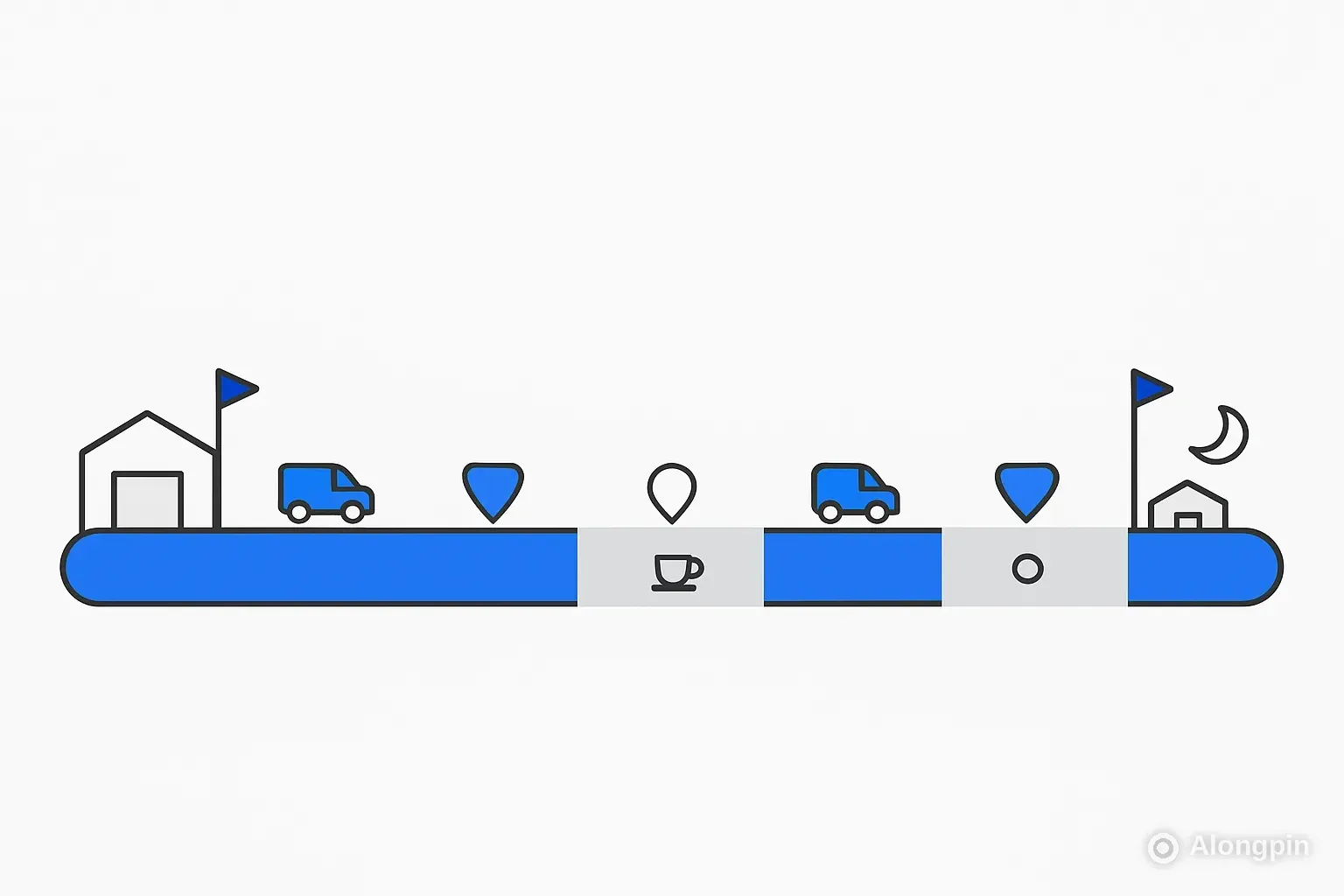
First departure and last return from depot zone events
Draw one zone around the depot under Geofences and attach it to the vehicles. Each time a vehicle leaves, the platform records an exit; each time it comes back, an entry. Leave the zone's Calendar on None (always): a working-hours calendar on the zone would drop the events outside those hours, and early starts and late returns are exactly what payroll wants to see. A polygon that follows the yard fence works better than a circle, because it leaves out the road outside the gate; the geofences page explains shapes and attaching zones to vehicles.
Then open Reports, the Geofence stays tab, choose the vehicles or their group, the depot zone and the day or the week, and press Show. Each row is one stay in the depot:
- The stay that began the night before ends at the first departure of the day.
- A stay that is still open at the end of the period, shown as still inside, began with the last return.
- Stays in between are returns during the day: a lunch break at the depot, a reload.
Vehicle departure and return times from the depot report goes through reading this list in detail, including vehicles that do not come back at night.
Driving time and distance from trips
The Trips report lists each journey with start and end time and place, distance, duration, moving time and idle time. Above the table, the totals of the period give the distance and driving time for everyone chosen. For a daily figure per vehicle, the Summary report with Per day gives one row per vehicle and day with distance, moving time, idle time and engine hours.
Two settings shape these figures. A trip starts after the vehicle has moved for a few minutes or a few hundred metres and ends after it has stood still for a few minutes, so a two-minute stop at a red light stays inside the trip. And idle time (standing with the engine running) is counted separately from moving time, which matters if your rules treat waiting in traffic differently from waiting at a loading bay.
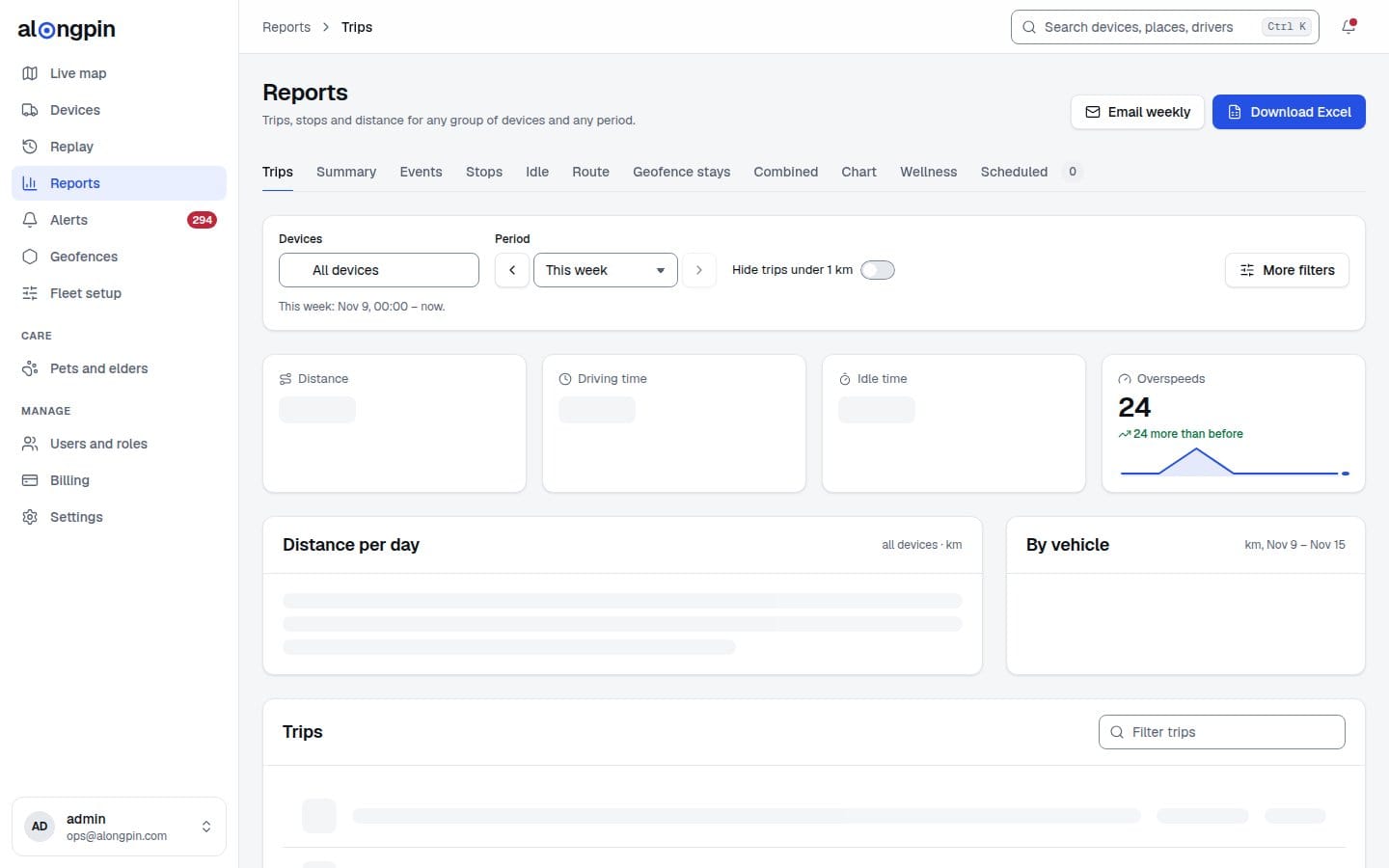
Exporting to Excel with a sheet per vehicle
For a payroll clerk, a workbook is easier than a screen. On either report, open Download and choose Excel, a sheet per device: each vehicle gets its own tab, named after the vehicle, with every row of the period. Excel puts everything on one sheet, the vehicle in the first column, which suits filtering and pivot tables.
The columns carry their unit in the header (Distance (km), Duration (h:mm)), times are local date-times in your time zone, and durations count hours past 24, so a week's driving time adds up correctly in a sum. Check your time zone and units under Settings → Your account → Map and display before you download a file for someone in another region. Running a report and downloading it as CSV or Excel shows each step. The reports page lists what each report holds.
Driver names where the tracker reads a card or key
Payroll is about people, and a tracker reports a vehicle. The trips report shows a Driver where the tracker reads a driver ID (an RFID card or a key fob the driver presents at the start) and the identifier is registered under Fleet setup → Drivers. Then the trips report can be filtered by Driver, and a shared van's day splits by who drove.
Without a driver ID, the vehicle stands for the driver only when one person always drives it. For pool vehicles, the figures need the vehicle log or the dispatch plan to say who had which van.
Limits and fairness: breaks, private use, agreement with staff
Before tracking data touches anyone's pay, three things need settling.
Breaks are not stops. A stop of 40 minutes at a customer is work; a stop of 40 minutes at a petrol station might be a break, or a wait for a delivery. Do not deduct breaks from tracking data automatically. Use the stops to ask, not to decide.
Private use and working hours. Where vehicles may be used privately, private trips can be set up so positions outside working hours are blurred, reduced to distance only or not stored at all, and private positions raise no zone events. That is right for privacy, and it means the depot list will not show a departure in private time. The driver privacy page explains the private modes and working-hours calendars.
Agreement with staff. Using tracking data for pay is a use of personal data about employees. Tell staff in writing what is recorded and what it is used for, check what your local law and any works council or union agreement require, and keep the data no longer than the purpose needs. A good rule: tracking data can confirm or question a timesheet, and the employee sees the figures and can explain them before anything changes.
A weekly routine
- Each Monday, run Geofence stays for the depot zone and Summary Per day for the previous week.
- Download both as Excel, a sheet per device.
- Set them beside the timesheets and mark differences above an agreed tolerance, say 20 minutes.
- Ask about the marked days; most have an ordinary explanation.
Both reports can also arrive by e-mail on a schedule, as a link each recipient opens with their own rights.
How Alongpin helps
Alongpin (alongpin.com) is a GPS tracking platform you open in a browser or on your phone. Trips, stops, idle time, summaries, events and geofence stays are ready as reports to view, download as Excel or CSV, or receive by e-mail on a schedule with scheduled reports; the API takes the same data into your own tools. See how it works for fleets, or sign up and run your first report.
Frequently asked questions
Can the platform calculate overtime?
No. It reports times and distances; your payroll rules calculate overtime.
Do drivers see their own data?
Only if they have a user that can see their vehicle. Showing staff their own figures before they are used is good practice.