Fleet management
Managing a fleet across several depots with groups and roles
Give each depot manager a view of their own vehicles and head office the whole fleet: groups per depot, roles scoped to groups, sub-accounts for branches, reports per depot, and access that stays tidy.
Ashish Srivastava7 min read

Multi depot fleet management works when each depot manager sees their own vehicles and head office sees all of them, without anyone maintaining separate lists. In Alongpin you get there with two tools: groups, one per depot or branch, which hold the vehicles; and roles, which give each person rights for a scope, such as "read and command the vehicles of the North depot group". Branches or subsidiaries that run themselves can have users of their own under a manager. Reports then run per depot or for the whole fleet from the same data.
Key takeaways
- One group per depot, branch or customer; groups can be nested, and a group counts with its subgroups.
- A role is a set of rights given for a scope; a group scope covers every vehicle in the group, including vehicles added later.
- Once a person has any role, they see and do only what their roles give.
- Managers can create users for a branch within their own reach, and share the branch's group with them.
- Reports and scheduled reports take groups, so each depot gets its own and head office gets the total.
- Disable or end users when people leave, and move vehicles between depots by moving them between groups.
Why one flat vehicle list stops working
With one depot and fifteen vans, a single list works: everyone knows every van. Add a second depot and the list doubles, half of it irrelevant to each manager. Add a third and the live map shows a hundred markers to a dispatcher who works with thirty. Reports cover vehicles nobody asked about, alert rules send North depot's speeding to South depot's manager, and anyone with a login can see, and possibly change, every vehicle in the company.
The fix is not separate accounts per depot, which splits the history and hides the whole picture from head office. It is one account with the vehicles organised by depot, and access that follows that organisation.
Groups by depot, branch or customer
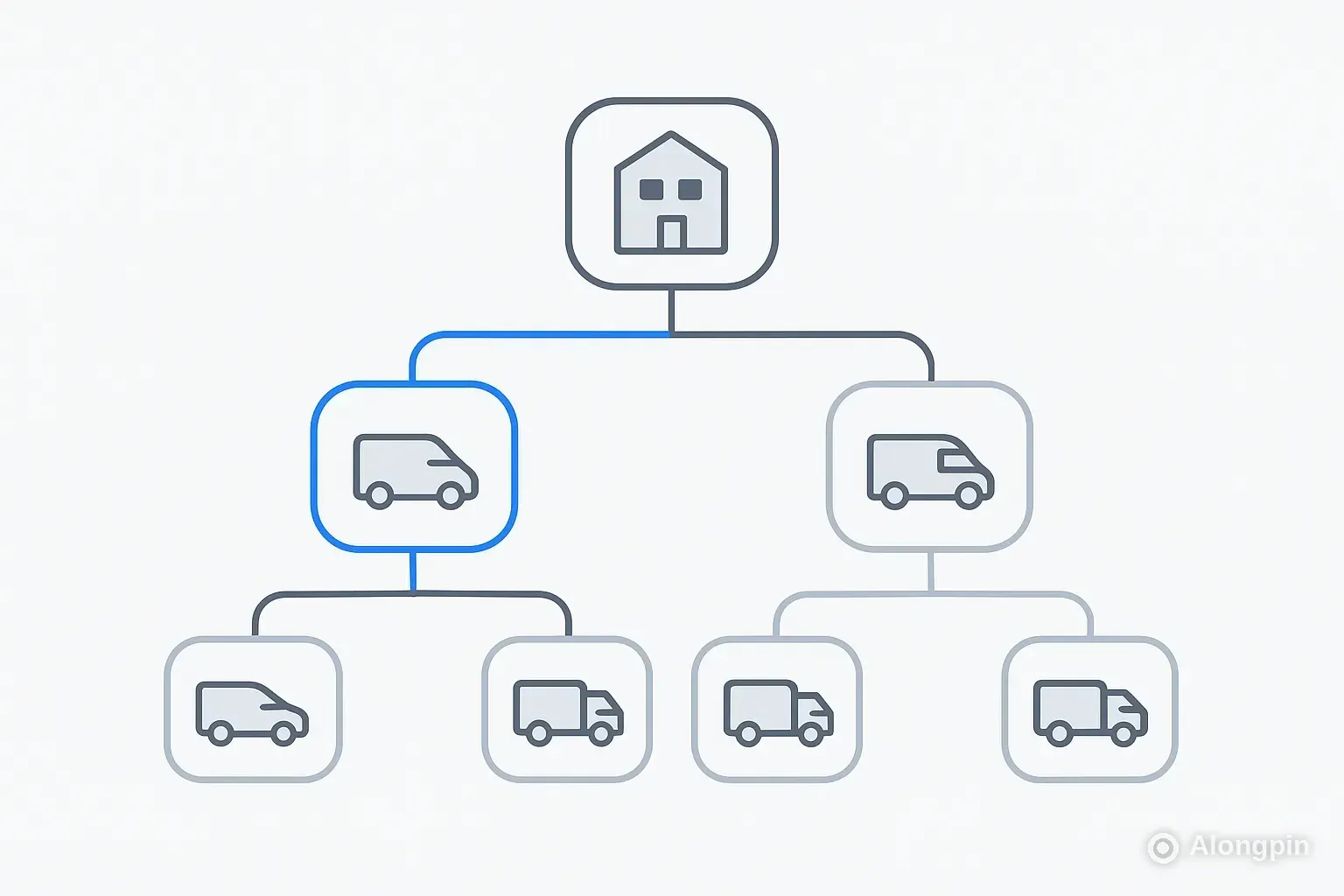
Under Devices, open Groups and choose New group for each depot. Give it a Name and, if it belongs inside another group, a Parent group. Then put each vehicle in its group: on the group's page with Add devices, from the device list several at a time, or in each vehicle's Group field.
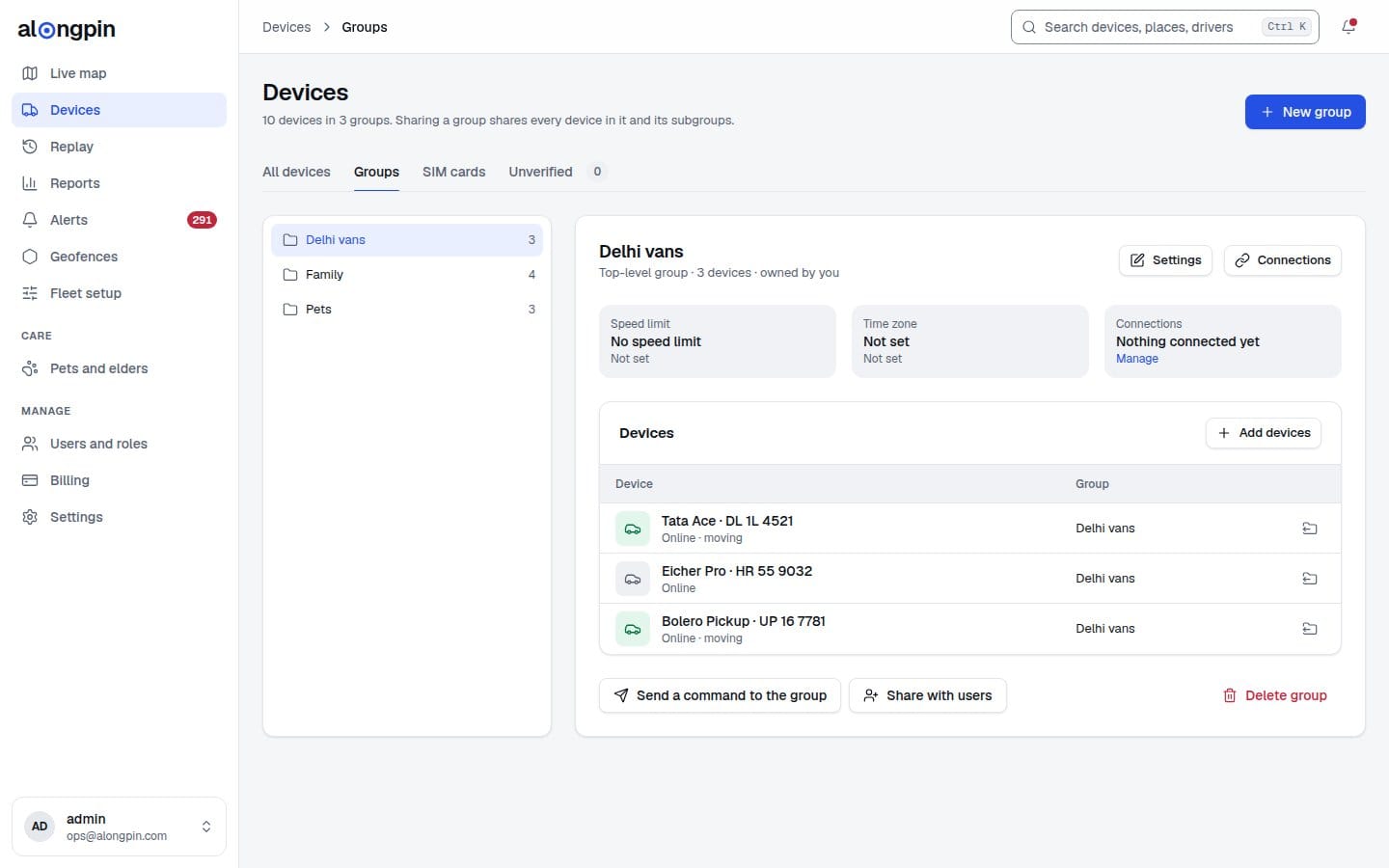
Groups can be nested, which lets one structure answer several questions:
- Company → Region → Depot, so a regional manager's scope covers every depot in the region.
- Depot → Vans and Trucks, so a rule or report can cover one vehicle type at one depot.
A vehicle sits in one group at a time, and counts in every group above it. Group by the question you ask most often. For most multi-depot fleets that is "which depot?"; for a contractor running vehicles on behalf of clients, it may be "which customer?".
Groups carry settings too. A speed limit or a no-data alert set on the depot group applies to every vehicle in it unless the vehicle sets its own. Rules and geofences attached to a group cover vehicles added to it later. How to organise vehicles into device groups goes through it step by step.
Roles and scopes: who sees and changes what
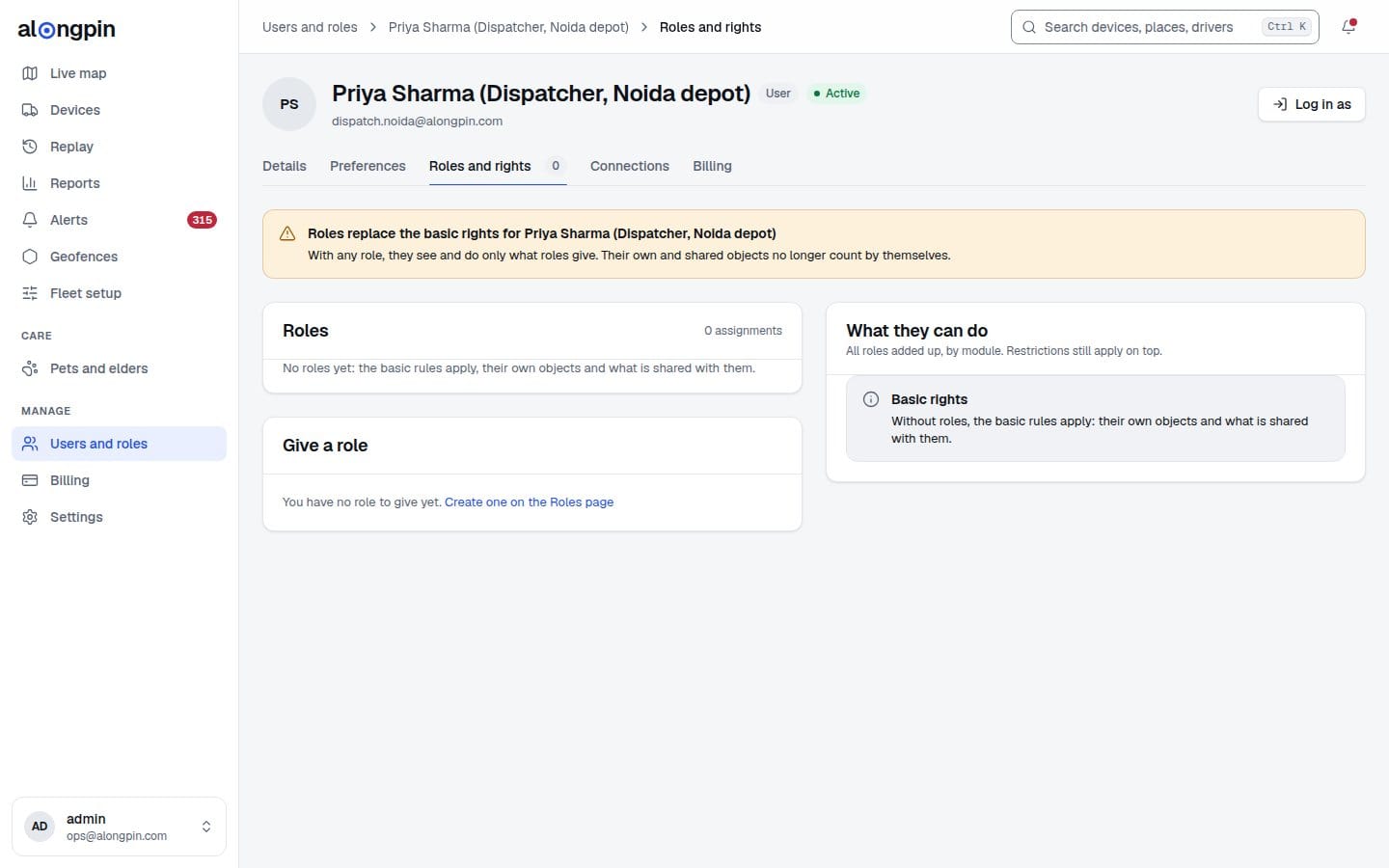
A role is a named set of rights, built under Users and roles, on the Roles tab. For each area (devices and groups, positions, events, commands, reports, alerts and the others) a role allows Read, Write or Both. You then give the role to a person on their Roles and rights page, with a scope under For:
| Scope | Covers |
|---|---|
| Everything | Every object, also other users' |
| Own | What they own |
| Own + shared | What they own and what is shared with them |
| Devices | The vehicles you pick |
| Groups | Every vehicle in the groups you pick, their subgroups and vehicles added later |
For a depot, the typical set-up is a few roles given for the depot's group:
- Depot manager: read devices, positions and events, run reports, write alert rules and geofences, perhaps change vehicles.
- Dispatcher: read devices, positions and events, and send commands if they need to; nothing else.
- Workshop: read devices and maintenance plans.
Head office gets the same roles for the top-level group, or for Everything. Remember that once a person has any role, they see and do only what roles give; the basic "what I own and what is shared with me" no longer applies. What they can do on the same page adds up every right a person's roles give. Roles and scopes: giving each person what they need explains each right, and how to give a dispatcher read-only access to one depot shows a complete example.
Sub-accounts for branches or subsidiaries
Some branches run themselves: a franchise, a subsidiary with its own administrator, a depot that hires and lets go of its own drivers. For these, an administrator can make the branch's lead a manager: a user who may create users of their own, up to a user limit the administrator sets.
The manager opens Users and roles, chooses Add user, and creates their staff. Those users belong to the manager: the manager can edit them, give them roles within the manager's own reach, share the branch's group with them, and use Log in as to see exactly what a user sees. A role a manager gives is shown as Delegated and never reaches further than the manager's own rights. Creating sub-accounts for a customer or branch covers user limits and device limits.
Head office keeps the overview: administrators see every user and every vehicle, and the branch's history stays in the same account.
Reports per depot and for the whole fleet
Every report under Reports takes Devices and Groups. Choose the depot's group and the report covers every vehicle in it and its subgroups; choose the top-level group, or all devices, and you get the whole fleet. A summary per depot side by side is the quickest way to compare distance, engine hours and idle time between sites.
To make this routine, press Schedule on a report: a weekly summary for each depot, sent to that depot's manager, and one for the whole fleet, sent to head office. Recipients must be users of the account, and each opens the report with their own rights, so a depot manager who is sent the whole-fleet report still sees only their own depot. The reports page lists every report.
Keeping access tidy when people move or leave
Access drifts over time unless someone looks after it. A few habits keep it tidy:
- Someone leaves. On their user page, under Restrictions, tick Disabled: they can no longer sign in and their sessions end at once. Share links they made stop working too. Delete the user later if you need to; vehicles and objects they owned stay, without an owner, for administrators to take care of.
- A temporary contract. Set Account expires when you create the user, so access ends on its own.
- Someone moves depot. Remove their role for the old group with Remove and give it for the new one. The rights change at once.
- A vehicle moves depot. Change its group. Everything that comes with the group (rules, geofences, settings, who can see it) follows; check the new depot's rules apply before the move.
- A review every quarter. Go through Users and roles with each depot manager: who still needs access, and does What they can do match their job?
Vehicles that change owner between users, for example when a subsidiary is sold, are transferred by an administrator. The users and roles page describes the model in full, and the fleet solution page shows how groups and roles fit a growing fleet.
Common mistakes
- A role given for Everything by habit. It shows every depot's vehicles to someone who needs one.
- Vehicles left without a group. They miss the group's rules and do not appear in a depot manager's view.
- Sharing a group without checking who it is shared with. Every vehicle moved into it later is shared too.
- Forgetting the read rights reports need. A role with the report right but without reading devices, positions and events produces empty reports.
How Alongpin helps
Alongpin (alongpin.com) is a GPS tracking platform you open in a browser or on your phone. Your trackers, in the vans, trucks and cars you already run, show on one live map with trips, stops, idle time and alerts; reports and scheduled reports answer the questions this article raises, and users and roles let each depot see its own vehicles. Check your trackers in the device check, read how it works for fleets, and start on the pricing page.
Frequently asked questions
Can a vehicle belong to two depots?
No. A vehicle sits in one group at a time. If two depots share a vehicle, give both managers rights for it, for example with a role scoped to that device.
Can a depot manager create their own users?
Yes, if an administrator makes them a manager with a user limit, or gives them a role that manages users.
Does head office need a separate login per depot?
No. One login with a role for the top-level group, or for everything, sees all depots and can filter by group.