Developers and integrations
Changing tracking platform: a migration checklist
A neutral checklist for moving trackers, users and zones to a new tracking platform with little downtime: inventory, compatibility, structure first, repointing in batches, history and a week side by side.
Ashish Srivastava6 min read

To migrate a GPS tracking platform with little downtime, do it in this order: take an inventory of everything the old system holds, check that every tracker model is supported, rebuild the structure (groups, users, roles, zones, alert rules) on the new platform before any tracker moves, then repoint the trackers in batches and run both systems side by side for about a week before you switch the old one off. History rarely moves with the trackers, so export what you must keep first. This checklist is written for the technical lead planning the switch; it applies to any two platforms, with Alongpin as the example of the new one.
Key takeaways
- Inventory first: devices with their IMEIs, models, protocols and SIMs, plus users, zones and alert rules.
- Check every tracker model before you plan dates; an unsupported model changes the project.
- Build groups, roles, zones and rules on the new platform first, in the portal or through the API.
- Repoint trackers in batches, by remote command, SMS or on site, starting with a small pilot.
- Export the history you must keep from the old system; it does not come across with the trackers.
1. Inventory: what you are moving
Start with a spreadsheet, one tab per kind of object. It becomes your import file, your batch plan and your checklist on the day.
Devices
- Name or fleet number, as people know the vehicle
- The identifier the tracker reports, usually the IMEI
- Make and model, and the protocol it speaks if the old platform shows it
- Which group, depot or customer it belongs to
- Fitted extras that matter: a driver ID reader, a fuel sensor, an input wired to a button, a dashcam
SIMs
- ICCID and phone number, operator and APN
- Whether the SIM can receive SMS (you may need it to repoint the tracker)
- Contract end dates, if you are changing operator at the same time
People and structure
- Users, what each one does and which vehicles they should see
- Groups and sub-groups
- Zones: depots, customer sites, no-go areas
- Alert rules: what triggers them, who receives them and through which channel
- Scheduled reports and their recipients
- Integrations: scripts, partner systems and anything holding an API token for the old platform
2. Check device compatibility first
Before you set dates, type each make and model into the device check. It searches the protocols the platform decodes. Most fleets have a few models; check each one, and note the protocol, because the protocol decides the port the tracker must send to.
Then pick two or three test units, ideally one of each model, and point them at the new platform in the office. You learn three things in an afternoon: that the tracker's messages decode, which of the extras arrive (ignition, inputs, fuel, driver ID), and how long a repoint takes for that model.
If a model is not supported, you have a decision to make before anything else: replace those units, or keep them on the old platform longer. Talk to us through the contact page if you are unsure about a model.
3. Recreate the structure on the new platform
Build everything before the first tracker moves, so vehicles arrive in the right groups with the right people and rules waiting for them.
Groups, users and roles
Create the groups first, then the users, then give each user a role for a scope such as their depot's group. The help article on roles and scopes explains the choices. A migration is a good moment to tidy up: users nobody can name, and rights wider than the job needs, don't have to come along.
Devices
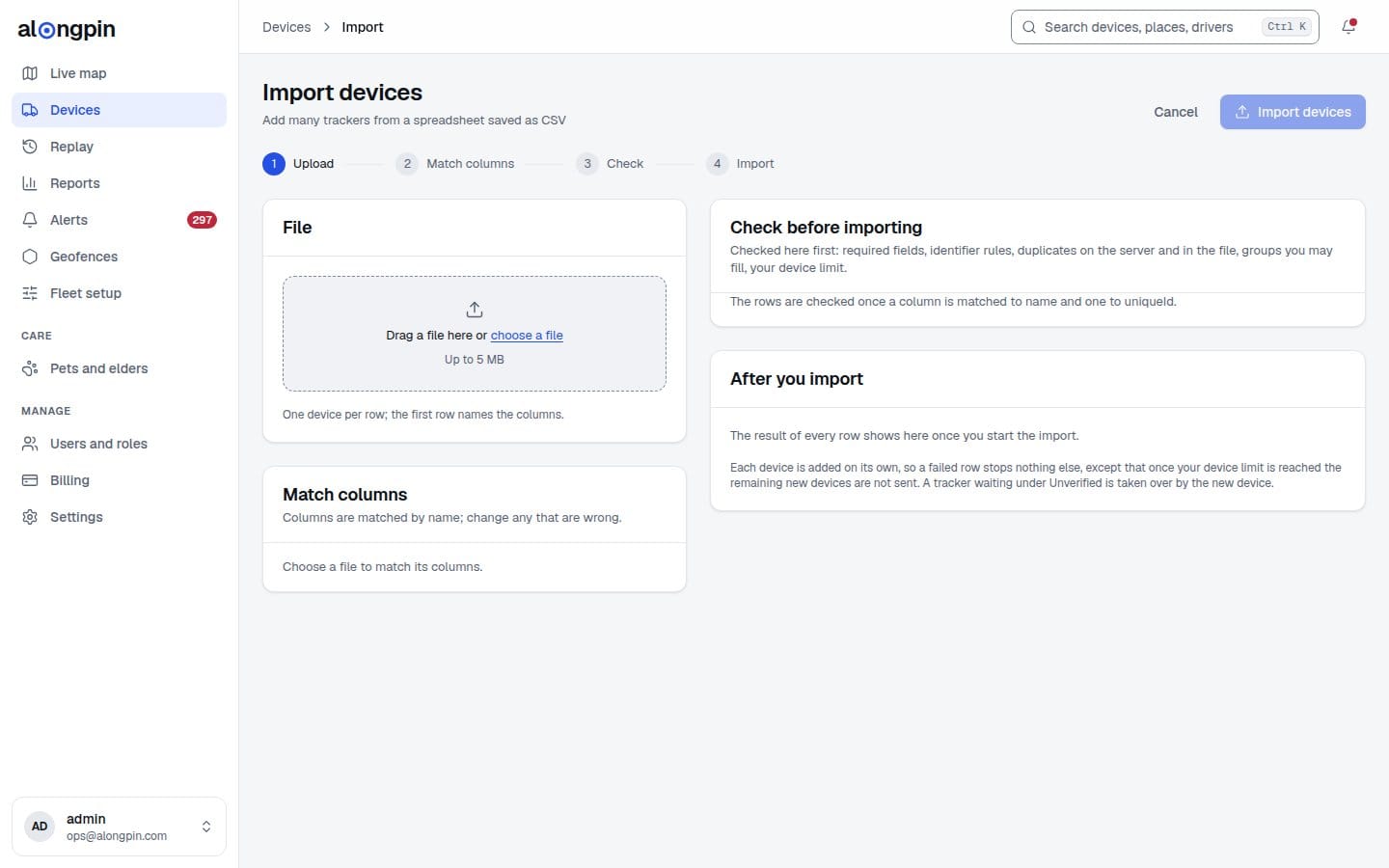
Add the trackers before they move. The device list takes a CSV import: map the columns of your inventory, and the import checks every identifier first, marking each row as new, already in your fleet, invalid, duplicated in the file, or registered by another account. Fix the flagged rows, import the rest into their groups.
A tracker that reaches the new platform before it was added is not lost: it waits under Devices → Unverified until someone with the right registers it.
Zones and alert rules
Export the zones from the old system if it can write GPX, KML, KMZ, GeoJSON or CSV, and import them on the Geofences page. Check a few on the map afterwards: some systems store latitude and longitude in the opposite order. Then recreate the alert rules and link them to the vehicles or groups and the recipients; rules rarely export in a form another platform reads, and rewriting them is a chance to drop the ones nobody acts on.
Or do it through the API
For large fleets, script it. Users, groups, devices, shares, roles, geofences and alert rules can all be created through the REST API, which also lets you re-run the build against a test account first. Give the migration script its own user and a token with a short expiry.
4. Repoint the trackers, in batches
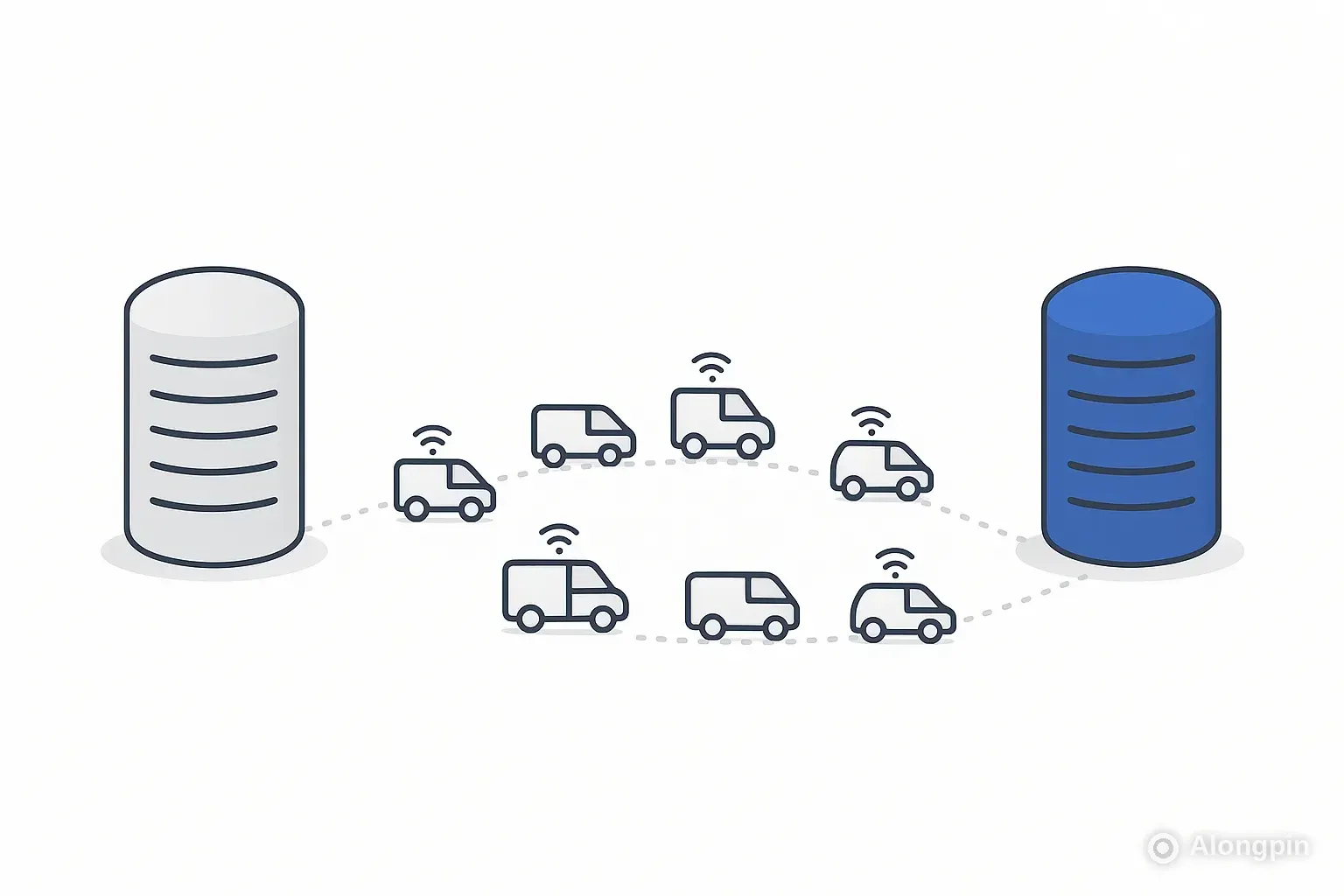
Repointing means changing the server address and port in each tracker's settings. The new address and the port of each protocol are in the device connection guide; in a standard setup, GT06 trackers use port 5023, for example, but always use the port that Set up the tracker shows for the device. If you also change SIMs, set the new APN at the same time.
There are three ways to change the settings, depending on the model:
- By remote command from the old platform, while the tracker still reports there. Many models accept a server-change command over their data connection. This is the fastest, but once it runs, the old platform loses the tracker, so be sure of the address and port.
- By SMS to the tracker's SIM, in the format the manufacturer documents. You need the SIM's number and, for many models, its password.
- On site, with the configuration tool or cable the manufacturer provides. Plan this for units that refuse remote changes, and combine it with routine services where you can.
Move in batches:
- Pilot: five to ten vehicles from one depot, with drivers and a dispatcher who will tell you what looks wrong.
- Check the pilot for a few days: positions on the live map, ignition and trips, zone alerts reaching the right people.
- Batches by depot or customer, so each team switches tools on one day rather than half-and-half for weeks.
- Stragglers last: units that did not take the command, are parked long-term or need a site visit.
After each batch, compare the list of devices with the vehicles reporting. The live map's Offline and Unknown states, and the unverified list, show you which trackers did not arrive. The help article on finding the server address and port covers the common reasons.
5. History: export what you must keep
Positions, trips and events recorded on the old platform stay there. The new platform's history for each vehicle begins with its first message.
Before the old contract ends, decide what you must keep and why: trips for a tax logbook, routes for a dispute, reports for a customer contract. Export those from the old system, as CSV, GPX or the reports themselves, and store them under the same retention rules you apply to your other records. Exporting everything "just in case" creates a store of personal data about your drivers with no purpose and no end date; keep what you need and delete the rest when its period runs out.
6. Run both for a week, then cut over
Run the two systems side by side for about a week after the last large batch. Vehicles already moved report to the new platform; the old one still shows the rest and the history. Use the week to:
- compare daily distances for a few vehicles between the old reports and the new ones;
- confirm every alert rule fired at least once where you expected it;
- move integrations one by one to the new API, each with its own token;
- train the last users, and collect what they miss.
Then cut over: revoke the old platform's API tokens, end its users' access, and give notice on the old contract once the stragglers are reporting. Keep the exported history where your team can find it.
A one-page checklist
- Inventory of devices, SIMs, users, groups, zones, rules, scheduled reports and integrations
- Every model checked, test units decoded, extras confirmed
- Groups, users and roles created
- Devices imported into their groups, flagged rows fixed
- Zones imported and spot-checked; alert rules recreated
- Repoint method chosen per model; pilot done and reviewed
- Batches scheduled by depot; stragglers listed
- History exported and filed with a retention period
- A week side by side; integrations moved; old access ended
How Alongpin helps
Alongpin (alongpin.com) is a GPS tracking platform you open in a browser or on your phone. Everything the portal shows is in its REST API, with live positions over a WebSocket, webhooks for alerts, and integrations including an MCP server for AI assistants. Start in the developer overview, or sign up and create an API token in your account.