Developers and integrations
API tokens and least privilege for tracking integrations
A token acts as the user who made it. Give each integration its own user, a narrow role, a token with an end date and a way to revoke it, and review what it did in the audit log.
Ashish Srivastava7 min read

API token security for a tracking integration comes down to three decisions: whose account the token acts as, how far that account reaches, and how the token ends. In Alongpin a token always acts as the user who created it, with exactly that user's rights. So the safe pattern is a dedicated user for each integration, with a role that covers only the vehicles and data the integration needs, and a token with an end date that you can revoke the moment something looks wrong.
Key takeaways
- Never run an integration on a person's login: the token would carry that person's rights and leave with them.
- Create one user per integration, give it a narrow role and scope, and make it read-only when it only reads.
- Tokens last 7 days by default and at most a year; store them as secrets and set a renewal date.
- There is no list of issued tokens, so note where each one is used; revoke a token by pasting it, or disable the user to stop all of them.
- Review what the integration user did in the audit log.
Why an integration should never use a person's login
A token made in your own session is you. Every call it makes has your rights: if you are an administrator, the script can read and change everything on the account. That is far more than a nightly export to a spreadsheet or a dispatch tool reading positions needs.
Personal tokens cause three practical problems:
- Too much reach. A bug or a leaked token can do whatever you can do, including changing devices, sending commands or deleting history.
- The wrong name in the log. The audit log shows your account for every change the script makes, so you cannot tell your work from the integration's.
- It breaks when people move on. When the person leaves and their account is disabled or deleted, every token they created stops working, and the integration fails without warning.
A dedicated account avoids all three. It belongs to the integration, not to a colleague.
A dedicated user with a narrow role and scope
Create a user for the integration under Users and roles with Add user, and name it after the job, for example "ERP export" or "Dispatch sync". Use a mailbox your team controls as its email, not a person's address.
Then decide what it may reach. Alongpin's access model has two parts, both explained on the users and roles page:
- A role is a set of rights, such as reading devices, reading positions, running reports or sending commands. Pick only the rights the integration calls. A report export needs to read devices, positions and events and run reports; it does not need to write anything.
- A scope says which objects the role covers: everything, what the user owns, what is shared with it, a list of devices, or a list of groups. A partner who only handles your refrigerated trucks gets a scope of that group, and new trucks you add to the group are covered automatically.
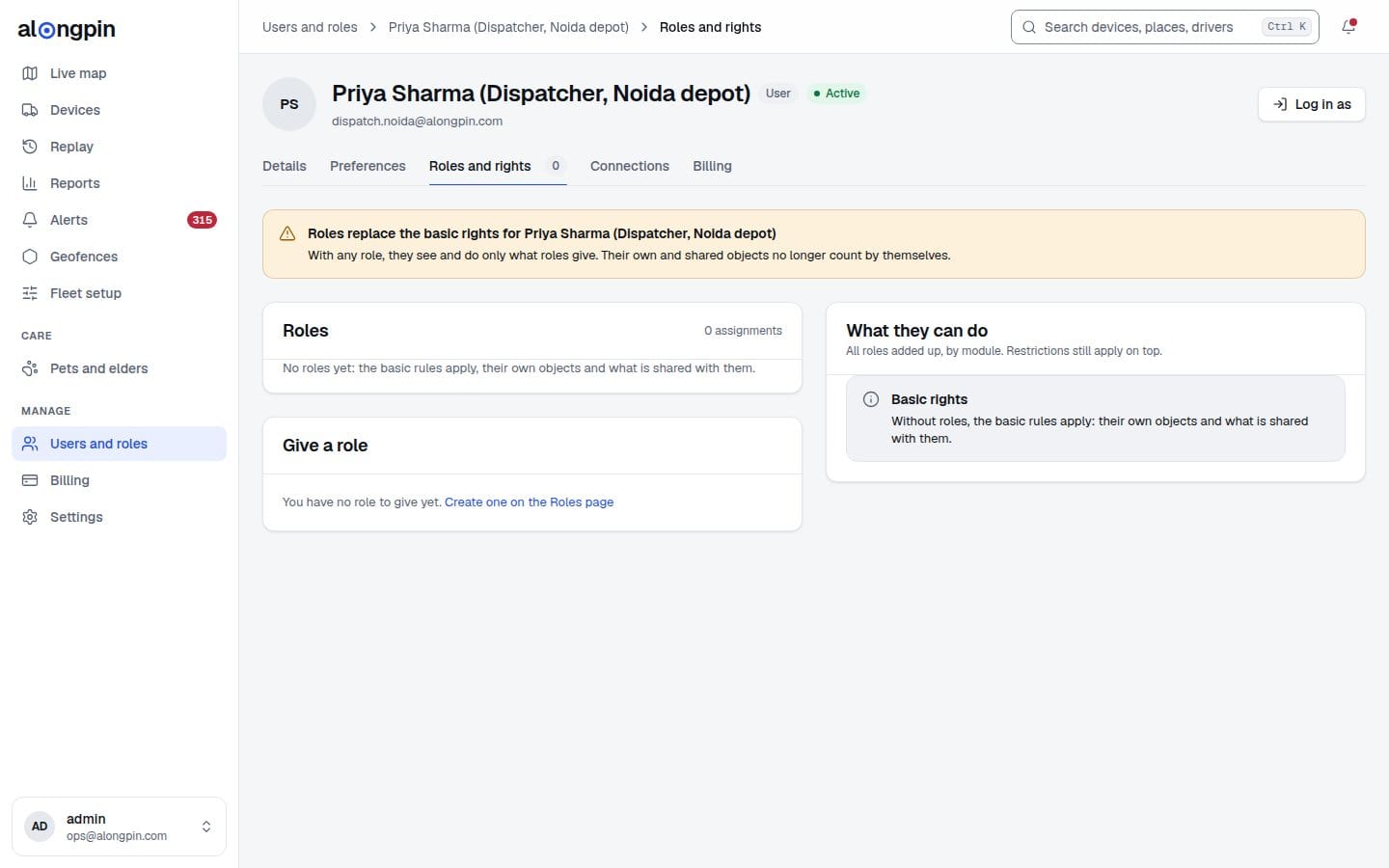
Give the role on the user's Roles and rights page. If you are a manager rather than an administrator, you can only give rights you hold yourself, for scopes within your own reach. The guide to roles and scopes walks through the choices.
When a call answers 403, the role or its scope does not cover the object. Widen it deliberately for that one need, rather than switching to an administrator token. The help article on 401 and 403 answers lists the usual causes.
Read-only users get read-only tokens
Most integrations only read: positions for a dispatch screen, trips for a payroll tool, alerts for a ticket system. For those, set the user's Read-only restriction under Restrictions as well as a read-only role. A token always carries the account's restrictions, and the server checks the live account on every request, so a read-only user's token cannot create, change, share or delete anything, whatever the role would otherwise allow.
Two other restrictions are worth knowing:
- Saved commands only limits a user to the commands you prepared, useful when a dispatch system may request a position but must never stop an engine.
- No reports removes report runs and history. Leave it off for a reporting integration and switch it on for one that only needs live positions.
Token lifetime, storage and revocation
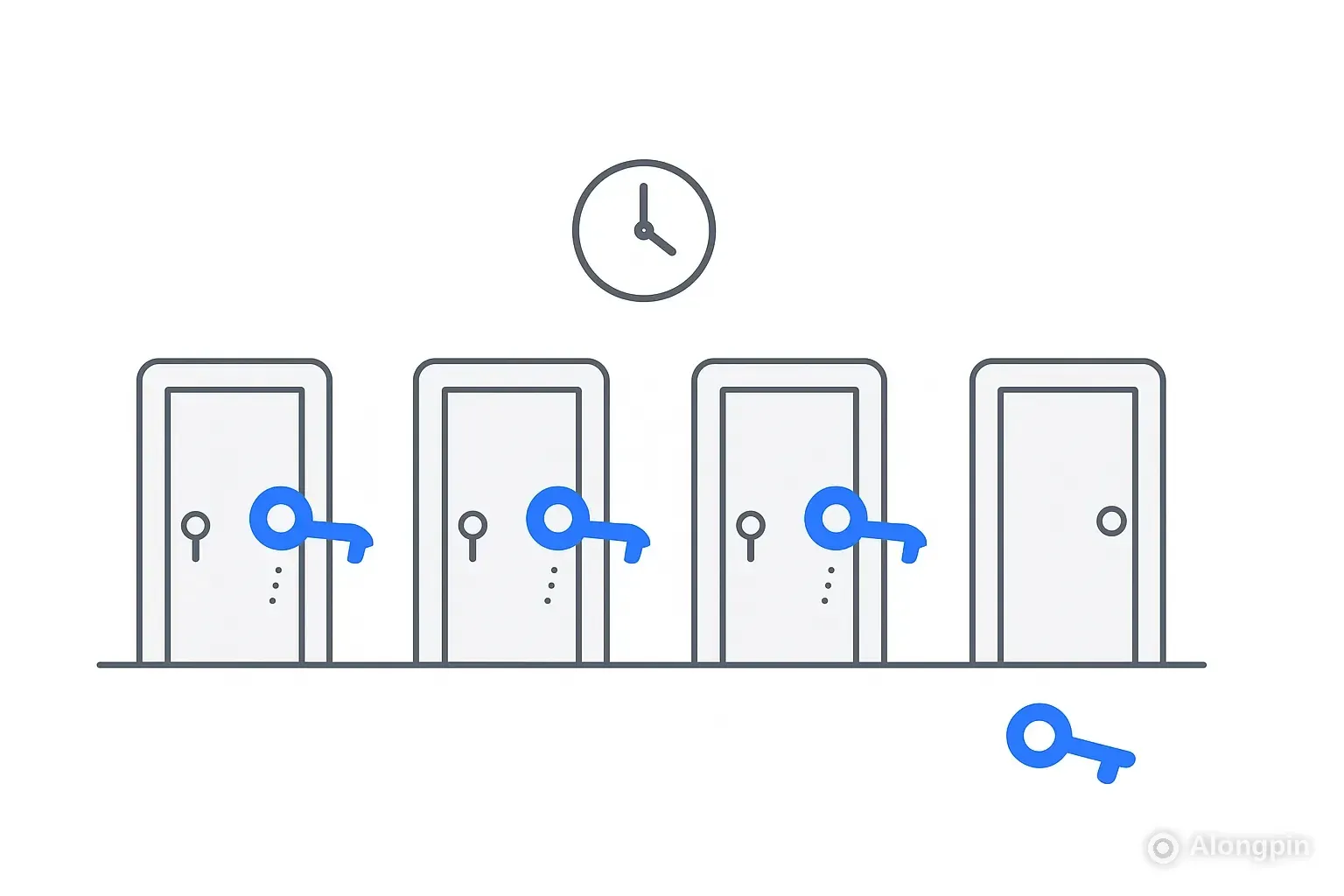
Create the token from the integration's own session
Sign in as the integration user, open Settings → Your account → Password and two-factor and use API tokens: choose the expiry date and select Create token. The token is shown once, so copy it into your secret store straight away. The API reference shows the same steps with curl.
Make the token in a session that started with a password. A token created from another token's session can never outlast that session, and it ends when that session is revoked.
Choose an expiry you will act on
A token lasts 7 days unless you choose otherwise, and at most one year. Pick the shortest period you will reliably renew, and put the renewal date in the same calendar or ticket system that tracks your certificates. A token that silently expires on a Sunday is a failure you can plan away.
Store it as a secret
- Keep it in your platform's secret store or environment, never in source control, a shared document or a chat message.
- Send it as an
Authorization: Bearerheader. The API also accepts it in the address for GET requests, which suits WebSockets and download links, but addresses end up in logs and browser history, so prefer the header in server-to-server calls. - Treat the token like a password for the integration user: anyone holding it can act as that user until it expires or is revoked.
Revoke it when needed
There is no list of issued tokens. To stop one, paste it under Revoke a token in the same settings: it stops working everywhere within moments, and so do sessions opened with it. You can revoke your own tokens and those of users you manage; administrators can revoke any.
If you no longer have the token, disable the integration user instead. Every token of a disabled account stops working on its next request, which is also the fastest response when you suspect a leak.
One token per integration
Give each integration its own user and its own token, even when two of them need the same data. Separate tokens let you:
- revoke one without stopping the others;
- see in the audit log which integration did what;
- give each the narrowest role it needs, as their needs drift apart.
Keep a short register of your integrations with the user, the role and scope, where the token is stored, who owns it on your side and when it expires. The portal does not keep that list for you, as the token settings themselves point out.
If your administrator has switched on access for AI assistants, a token can also connect an assistant to the platform's read-only tools. The same rule applies: give the assistant its own narrowly scoped user rather than your personal token.
Reviewing integrations in the audit log
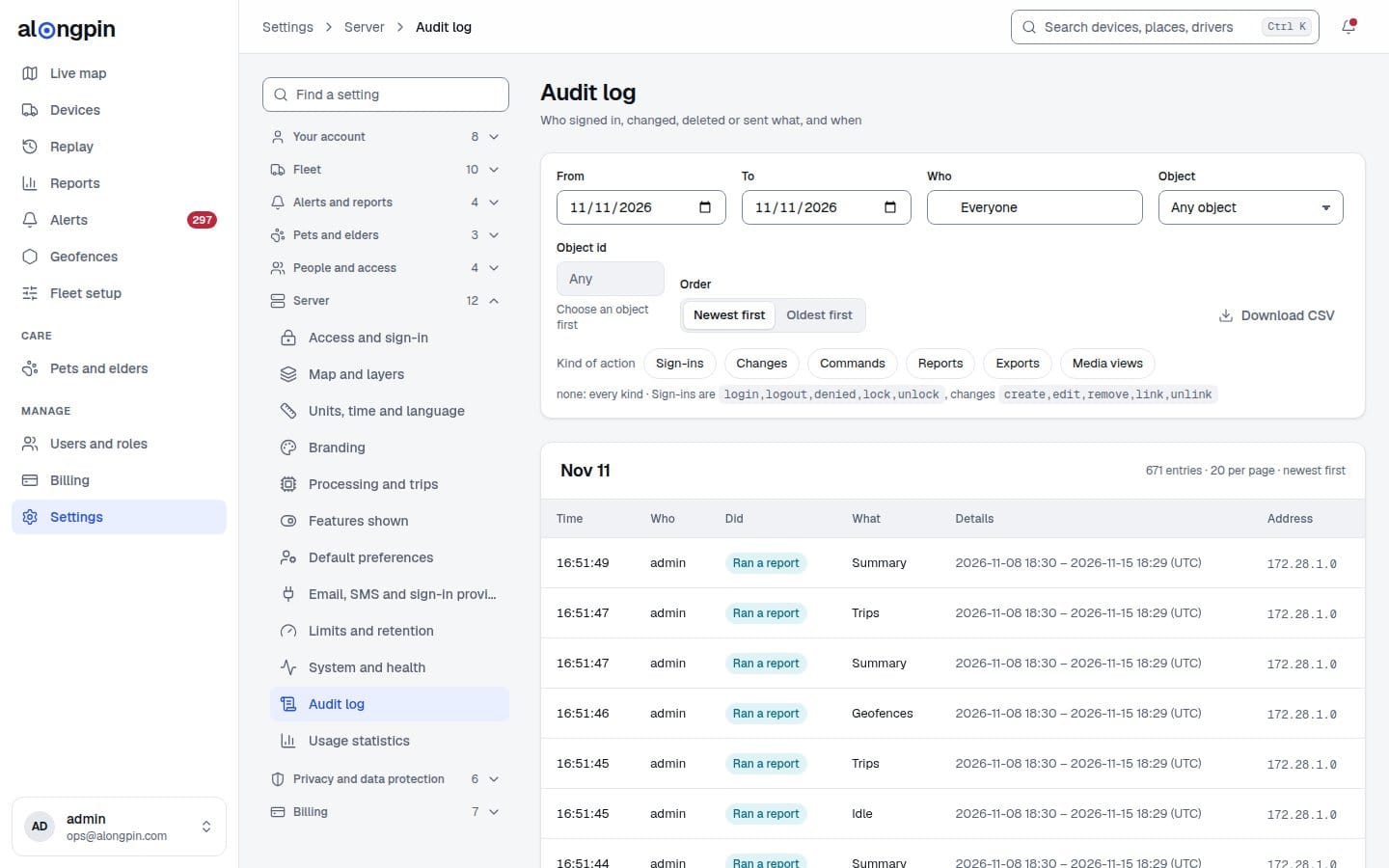
Administrators open the Audit log under Settings → Server. Filter Who to the integration user and choose a period to see what it did: report runs, commands it sent, objects it created or changed, and the API tokens issued to it. Every request that changes something is recorded, with the client address the server saw. Secrets are never written to it.
A quarterly review takes a few minutes:
- List your integration users and check each still has an owner and a purpose.
- Compare each role and scope with what the integration actually does; remove rights it never uses.
- Look for activity you don't expect, such as commands from a reporting integration or sign-ins from new addresses.
- Check the renewal dates of the tokens in your register.
- Disable users whose integration is gone.
The security page describes the other controls around sign-in, sessions and the audit log.
A minimal setup to start with
- Create a user "Reporting export" with a team mailbox and the Read-only restriction.
- Give it a role with read rights for devices, positions and events plus report runs, scoped to the group the export covers.
- Sign in as that user, create a token that expires in 90 days and store it in your secret store.
- Point the script at the token and run it once by hand; check the audit log shows the run under the new user.
- Record the integration, its owner and the renewal date in your register.
How Alongpin helps
Alongpin (alongpin.com) is a GPS tracking platform you open in a browser or on your phone. Everything the portal shows is in its REST API, with live positions over a WebSocket, webhooks for alerts, and integrations including an MCP server for AI assistants. Start in the developer overview, or sign up and create an API token in your account.
Frequently asked questions
Can I see all tokens that exist for a user?
No. Tokens are shown once when they are created and the platform keeps no list. The audit log records each token issued, with its id, so you can see that tokens were created and when; keep your own register of where each is used.
What happens to a token when the user's role changes?
The token follows the account as it is now. Rights are checked on every request, so a narrower role or a new restriction applies to the existing token at once.
Does signing out end the integration's token?
Signing out ends only the browser session you sign out of. Tokens created from a password session keep working until they expire or are revoked.