API and integrations
Connecting an AI assistant through the MCP server
Where the administrator has switched it on, an AI assistant can read your fleet data through the MCP endpoint with your own token and rights. How to check it is on, create a token, connect the assistant, and what it can and cannot read.
Ashish Srivastava3 min read

An MCP server lets an AI assistant read your GPS tracking data. Where the administrator has switched it on, an assistant that supports the Model Context Protocol connects to https://YOUR_HOST/api/mcp with an API token, and can then list your devices, positions, geofences and alert rules and run trip, stop and summary reports, with exactly your rights. It only reads, and it never receives health readings. To end its access, revoke the token.
Key takeaways
- The endpoint is off until an administrator switches it on; until then it answers
404.- The assistant uses a bearer token, so it sees what the token's user sees, nothing more.
- Twenty read-only tools: lists and reports. No commands, no changes.
- Heart rate, blood pressure, blood oxygen, blood sugar and temperature are removed from every result.
1. Check that the MCP endpoint is switched on
The switch belongs to the administrator, in the privacy settings (Privacy by default) as AI assistants (MCP). It is off by default, because whatever an assistant reads is passed to the assistant's provider. A change applies within about ten seconds.
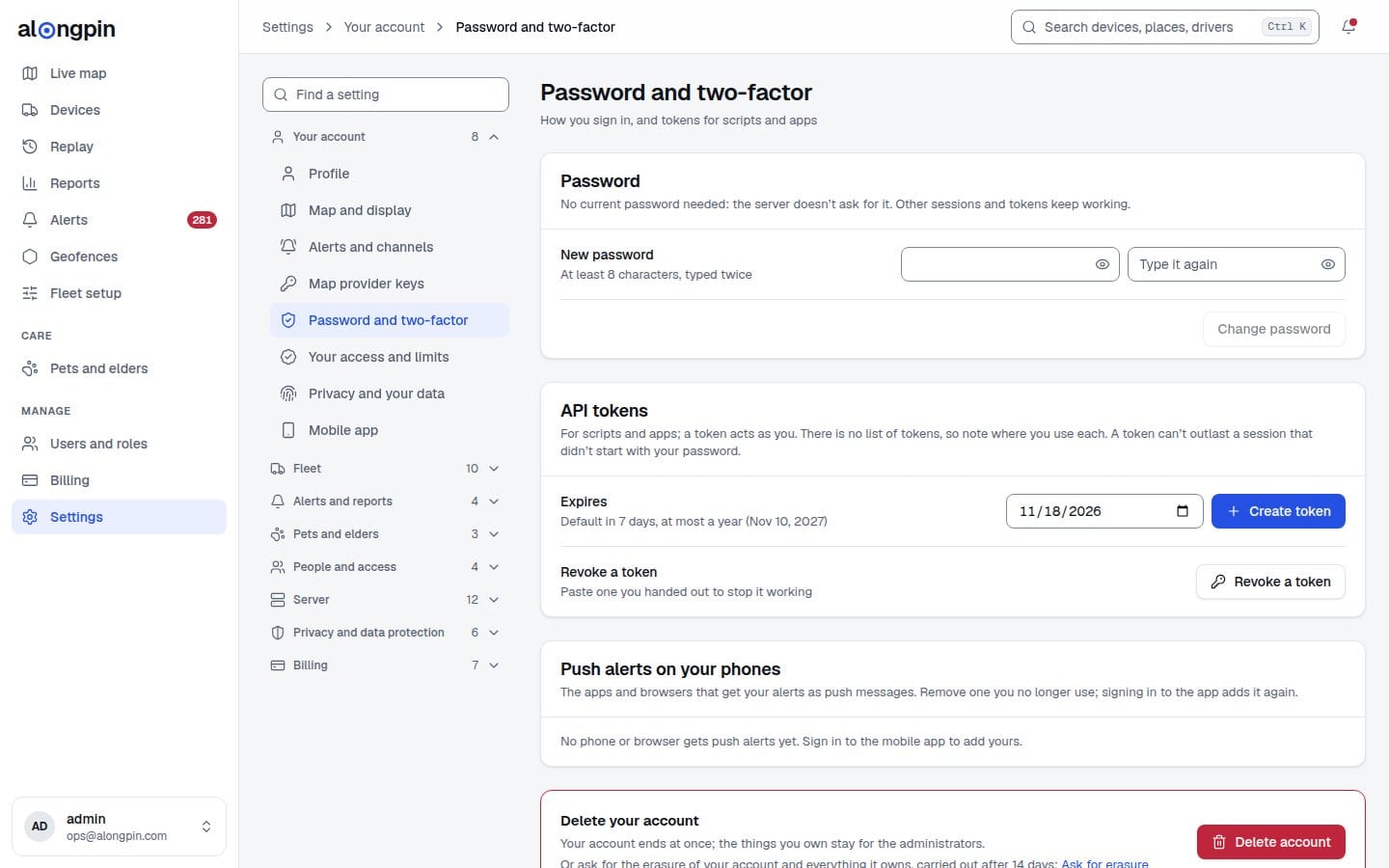
As a user, look under Settings → Your account → Password and two-factor: while the endpoint is on, the API tokens section says that a token also connects an AI assistant, and shows the address. From a script, GET /api/server answers mcpEnabled.
2. Create a token for the assistant
In the same API tokens section, set Expires and select Create token, then copy it. Better still, ask whoever manages Users and roles for a separate user with a role limited to what the assistant should see (one depot's group, say) and create the token as that user. The security overview explains why a narrow role is the safer default.
3. Enter the endpoint address and the token in the assistant
In the assistant's settings for MCP servers or connectors, add a server with:
- Address:
https://YOUR_HOST/api/mcp(the Streamable HTTP transport); - Authentication: the header
Authorization: Bearer <token>.
The session cookie of a browser is not accepted. Assistants that sign in through OAuth instead of a token can use the platform as their authorization server, if the operator has registered that assistant. To check the connection yourself first:
curl -H "Authorization: Bearer $TOKEN" -H 'Content-Type: application/json' \
  -d '{"jsonrpc": "2.0", "id": 1, "method": "tools/list"}' \
  https://YOUR_HOST/api/mcp
A list of tools means it works. A 404 with "The MCP endpoint is switched off" means step 1; a 401 means the token is missing, expired or revoked.
4. What the tools can read
Each tool is a read request to an API endpoint, sent with your token, and its arguments are that endpoint's parameters (a deviceId, a period). The MCP and integrations page lists them:
| Group | Tools |
|---|---|
| Things you track | getDevices, getGroups, getPositions, getGeofences, getDrivers, getMaintenance |
| Reports | getReportsRoute, getReportsTrips, getReportsStops, getReportsSummary, getReportsEvents, getReportsGeofences, getReportsCombined |
| Setup | getNotifications, getCommands, getCalendars, getAttributesComputed, getOrders, plus getServer and getUsers |
So an assistant can answer "which vans were parked at the depot last night?" or "how far did the fleet drive this week?" from the same data and the same rights as the API. When the user may not see something, the tool returns the error instead of the data.
5. Read-only, without health data, and how to end it
- Read-only: no tool sends a command, and no device, geofence or rule is changed.
- No health data: heart rate, blood pressure, blood oxygen, blood sugar and body or wrist temperature are removed from positions, routes and events before the assistant sees them. Other values, such as ignition or battery level, stay.
- Ending it: revoke the token under Password and two-factor with Revoke a token, and the assistant loses access within moments. An administrator can also switch the endpoint off for everyone.
Frequently asked questions
Which assistants work?
Any assistant that supports the Model Context Protocol over HTTP and can send a bearer token, or sign in through OAuth. There is no list of tested assistants.
Can the assistant start an engine stop or change a geofence?
No. Every tool only reads.