Rental and leasing
Giving a hirer a live location link for their unit
How rental operators can let a customer see the unit they hired, and only that unit, for the length of the hire: a read-only share link with an end time, an optional PIN, and revoking it at return.
Ashish Srivastava6 min read

To share a rental vehicle's location with the customer who hired it, create a share link on that unit, or on a group of units, with an end time at the end of the hire. The hirer opens the link in a browser, without an account, and sees that unit on a map, read-only. You can add a PIN where your account allows it, and revoke the link the moment the unit comes back. This guide covers when a link makes sense, how to set one up for a hire, and what the hirer can and cannot do with it.
Key takeaways
- A share link shows one unit, or one group of units, read-only, to anyone who has it.
- Set Works until to the end of the hire; your server may cap how far ahead a link can run.
- Label each link with the contract, so you can find and end the right one.
- Add a PIN where your administrator allows it, and send it separately from the link.
- Revoke at return or early termination; the hirer is cut off at once.
Why customers ask, and what they need to see
The customers who ask to see a hired unit are usually businesses. A contractor who hired six vans for a project wants to know where they are without ringing each driver. An event company wants to see the generator trailer arrive on site. A construction firm's site manager wants to know the excavator has left the yard and when to expect it.
What they need is narrow: where the unit is now, whether it is moving, and when it last reported. They do not need its history before the hire, other customers' units, your alert rules or your reports. A share link gives exactly that narrow view. The rental solution page shows where links fit with the rest of a hire.
A read-only link to one unit or one group
A share link is made from the unit itself:
- Open Devices, pick the unit and open its Settings.
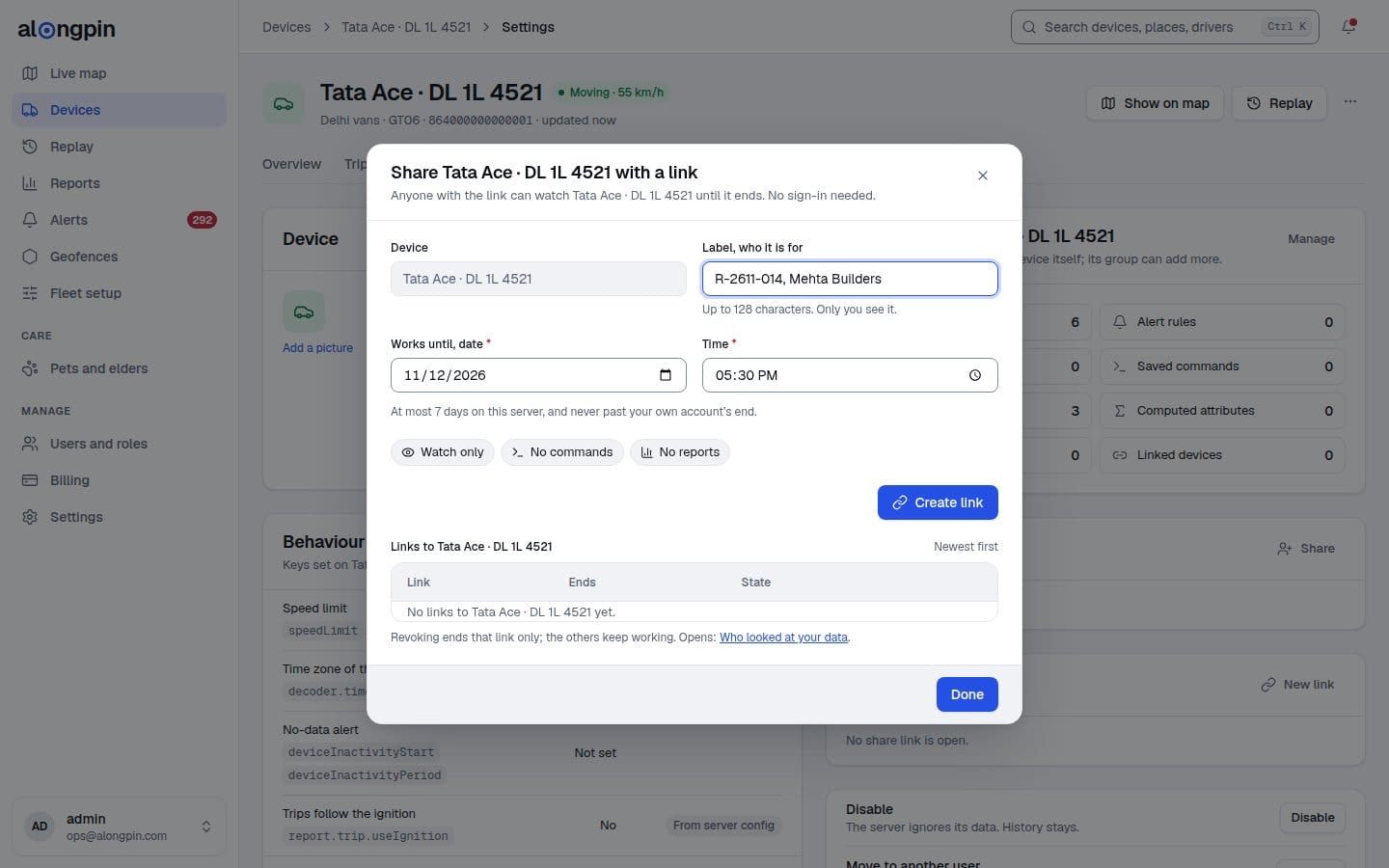
- Under Share links, choose New link. The dialog Share … with a link opens.
- Under Label, who it is for, write the contract number and the customer, such as "R-2611-014, Mehta Builders". The hirer never sees it; only you, whoever manages your account and administrators do.
- Set Works until: the date and time the link stops.
- Add a PIN if the field is shown (see below).
- Choose Create link and copy the short link when it says The link is ready.
For a hire of several units, put them in a group of their own, open Devices → Groups, choose the group, and make the link there under Share links. The link then shows every unit of the group and its subgroups, and a unit you add to the group later. Remove the group, or take units out of it, when the hire ends. Sharing a device with a link has the same steps with every option.
The hirer opens the link on a phone or a computer and sees the unit on a map, with its speed, place and heading and when it last updated. The page says who shared it and until when, and that they can watch but not change anything. It refreshes by itself; no sign-in and no app are needed. What the map shows is described on the live map page.
Setting the expiry to the end of the hire
The end time is what makes a link safe to hand out: it stops by itself, whether or not anyone remembers it. Set it to the return time in the agreement, not the end of the day after.
Two limits apply:
- Your server's maximum. An administrator can set the longest period a link may run, and the dialog says so under the date. On a new installation it is 7 days. For a hire of several weeks, send a new link before the first one ends, and label both with the contract.
- Your own account. A link never outlasts the account that made it. If that account is disabled or expires, its links stop until it is active again.
An expired link cannot be extended; make a new one.
An optional PIN where the account allows it
A link holds no password: anyone who has it can watch until it ends. For most hires that is fine. For a valuable unit, a long hire, or a link that will be forwarded around a customer's office, add a PIN.
Your administrator decides for the whole server whether links take a PIN: off, optional or required. Where it is offered, type 4 to 6 digits in PIN, optional when you create the link. The viewer must type it before the map opens. Send the link by e-mail and the PIN by text message or on the phone, never together. Five wrong PINs lock the link for 15 minutes, and ten since the last right one revoke it.
A PIN cannot be added to a link afterwards, and it is never shown again, so note it before you close the dialog. Protecting a share link with a PIN covers the rest.
Revoking at return or early termination
When the unit comes back early, the hire is cut short, or a customer falls out with you, end the link rather than wait for its end time:
- Open the unit's Settings; under Share links, find the link by its label.
- Choose End and confirm. In the full list under Settings → Your account → Privacy and your data, the same action reads Revoke.
The link's state turns to Revoked. Anyone who had the map open is cut off at once and sees a page saying the link has ended; there is no last position left on screen. Your other links to the same unit, such as one for the next hire, keep working. Make revoking a link part of the return checklist, next to the fuel and the damage check. Revoking a share link explains what the viewer sees and how to check who opened a link.
What link users cannot do by default: commands and reports
By default, a share link only watches. The hirer cannot:
- send commands to the unit, such as asking for a position or cutting the engine;
- run reports or download its history;
- see other units, your geofences, your alert rules, or the account's users;
- change anything about the unit.
Your administrator can widen this for the whole server: links may be allowed to send the saved commands attached to the unit, or to replay the route and run reports. The share dialog shows what links on your server allow. For hirers, keep the default unless there is a clear reason, and decide on commands with care: a command that cuts an engine is not something to put in a customer's hands.
A customer who needs more, such as a long-term lessee who wants trip reports, is better served by a user of their own with the unit shared to it, read-only. How share links and user shares differ is on the users and roles page.
How Alongpin helps
Alongpin (alongpin.com) is a GPS tracking platform you open in a browser or on your phone. Each hire vehicle shows on the live map with its trips and distance, geofences mark your yards and permitted areas, and a share link can give a hirer the vehicle's position for the length of the hire. See how it works for rental and leasing, or check your trackers in the device check.
Frequently asked questions
Does the customer see where the unit was before the hire?
Not by default. A link shows the unit's current position and its movement from then on; replaying the route is possible only where your administrator allows it for links.
Can I see whether the customer opened the link?
Yes. Who looked at your data lists each time one of your links was opened, with the browser and roughly where from.
Can the customer pass the link on?
They can, and anyone who gets it can watch until it ends. A PIN, a near end time, and a label per customer limit the damage.